
|
||
|
|
||
There is brand new Concrete settings (structure) setup for concrete members which contains all needed settings coming from code or calculation routines. The global settings located in Concrete settings (structure) are by default valid for all members in the project, unless they are overwritten by Settings per member - 1D member data. A lot of input parameters and calculation settings are collected here, reflecting the complexity of the Eurocode.
This dialogue is split into two main parts. The left part contains the values themselves and right side includes explanatory figure with description of the value. Additionally there are several buttons for search, filtering, mode selection and default settings.
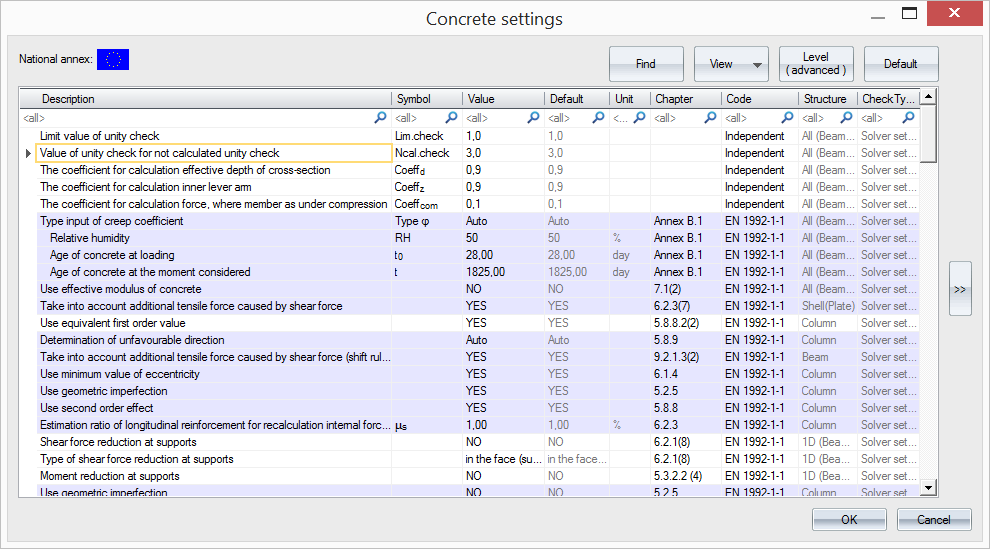
Concrete settings dialogue is presented as a kind of table with 9 columns (description, symbol, value, default, unit, chapter, code, structure and check type). Each column has enabled possibility for search. User can easily start typing at the first row of column and see intermediate output of the search.
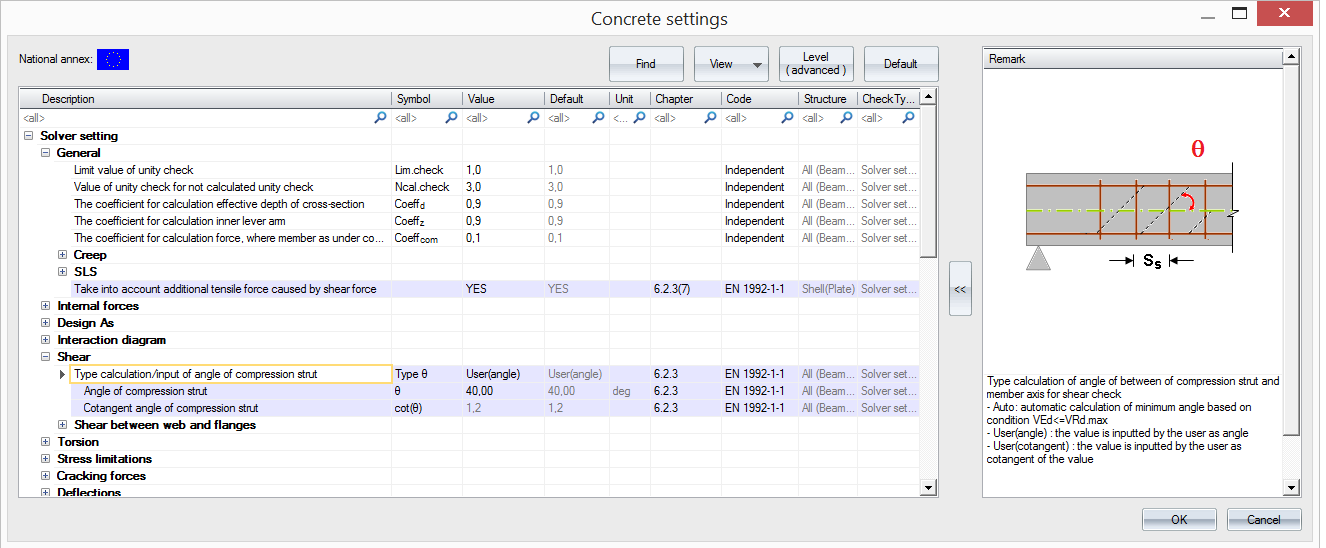
To find all items related to any chapter (like Cover, ULS ...) use search in column Check type
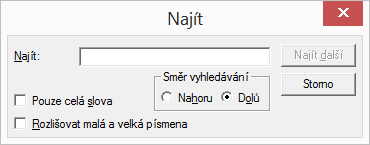
There's also a 'Find' function, where the user can insert a search term. It brings some kind of filtering of items in the setup. This function enables searching the defined value anywhere in the Concrete setting dialogue
Furthermore, very useful new thing is possibility of switch type of view of items of setup - concrete commands view, code chapter view or list view. The first view is according to commands (Concrete commands view) used for design and check.
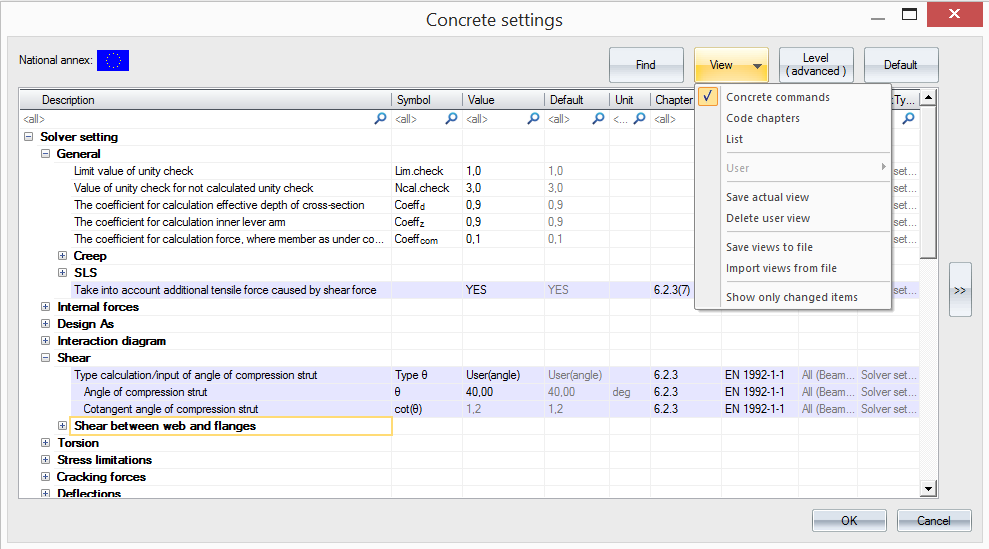
View possibilities and Concrete commands view
Another view is based on numbering from design code as mentioned on the following figure.
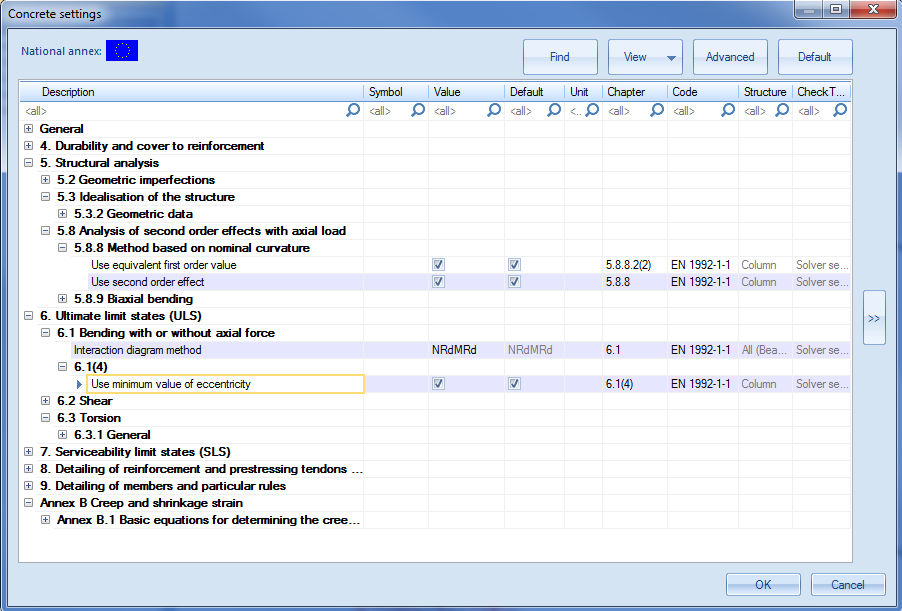
Code chapters view
The last predefined view is the List view where all items are listed and could be alphabetically sorted.
List view
Additionally, the User has also possibility to create his own view based on filtered items and use them for quick changes later on. User defined view can be crated using Save actual view and definition of the name.
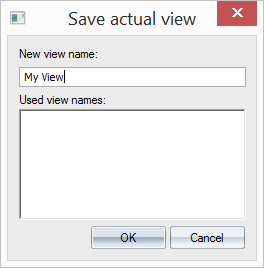
Afterwards, this view is possible to select in User item. This user view is possible to save or import from the file using Save views into file, and Import views from file.
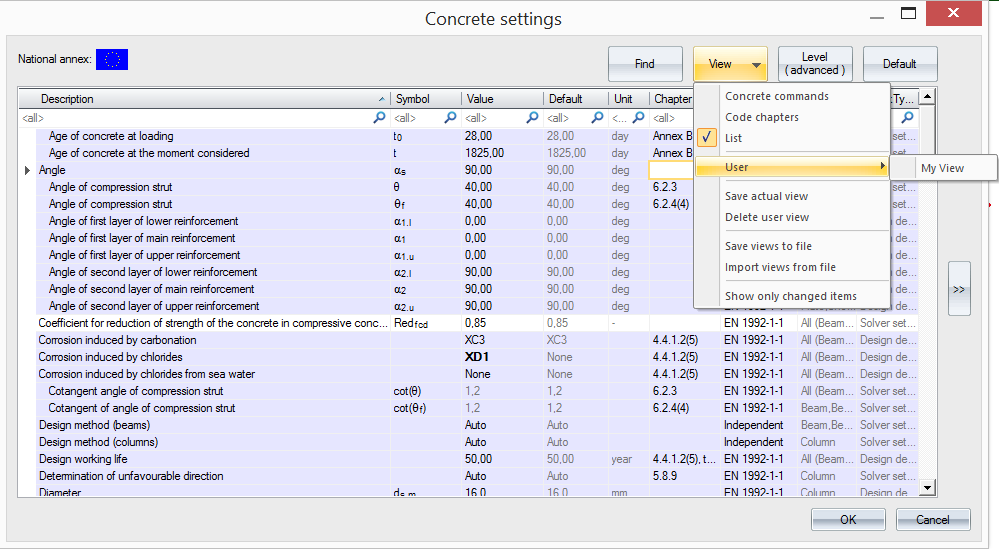
User defined view
Finally, there is possibility to see only changed items using option Show only changed items.
The user can choose between a Standard or Advanced level, which filters the amount of data. The example is visible on group Solver settings - General.
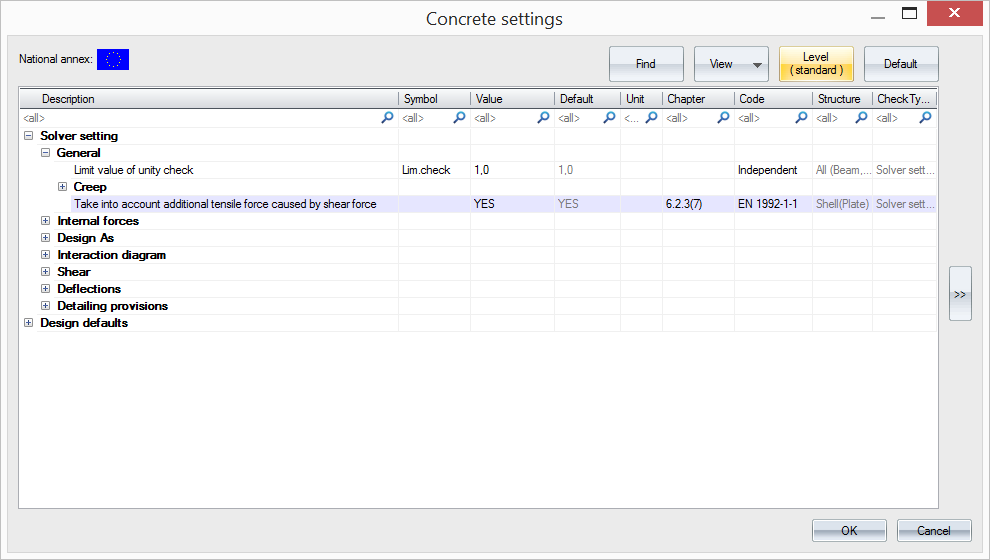
Standard view
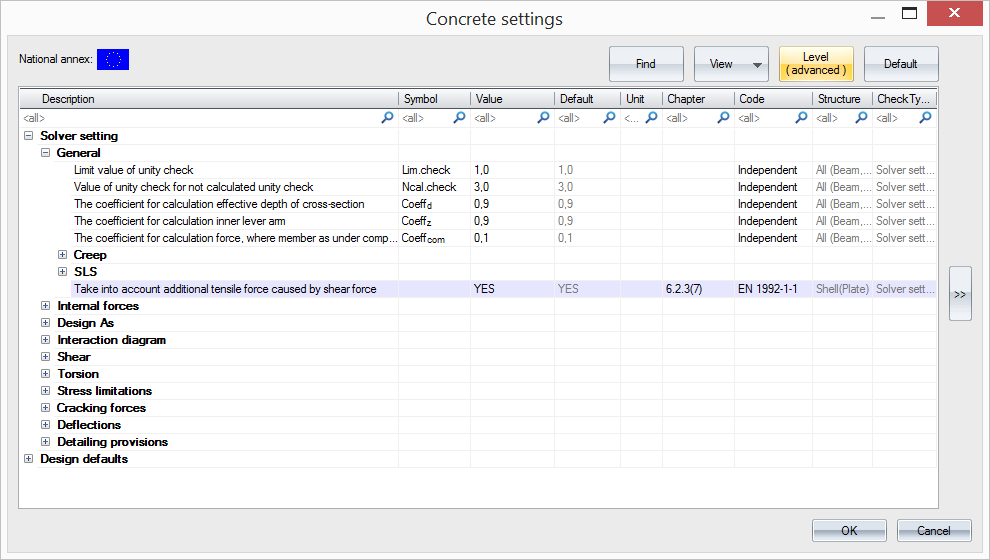
Advanced view
Finally, when the user wants go back to predefined values it is possible to easily press button default and all settings are restored.