|
||
|
|
||
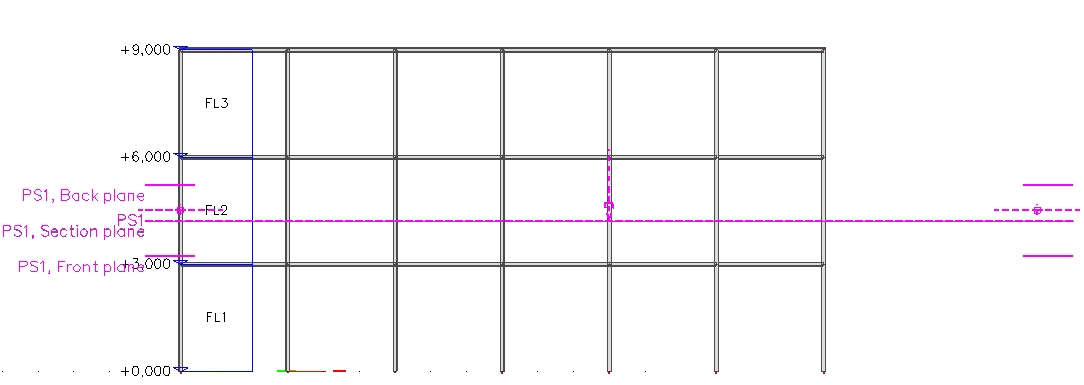
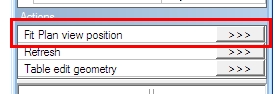
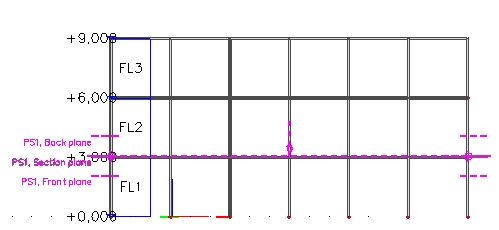
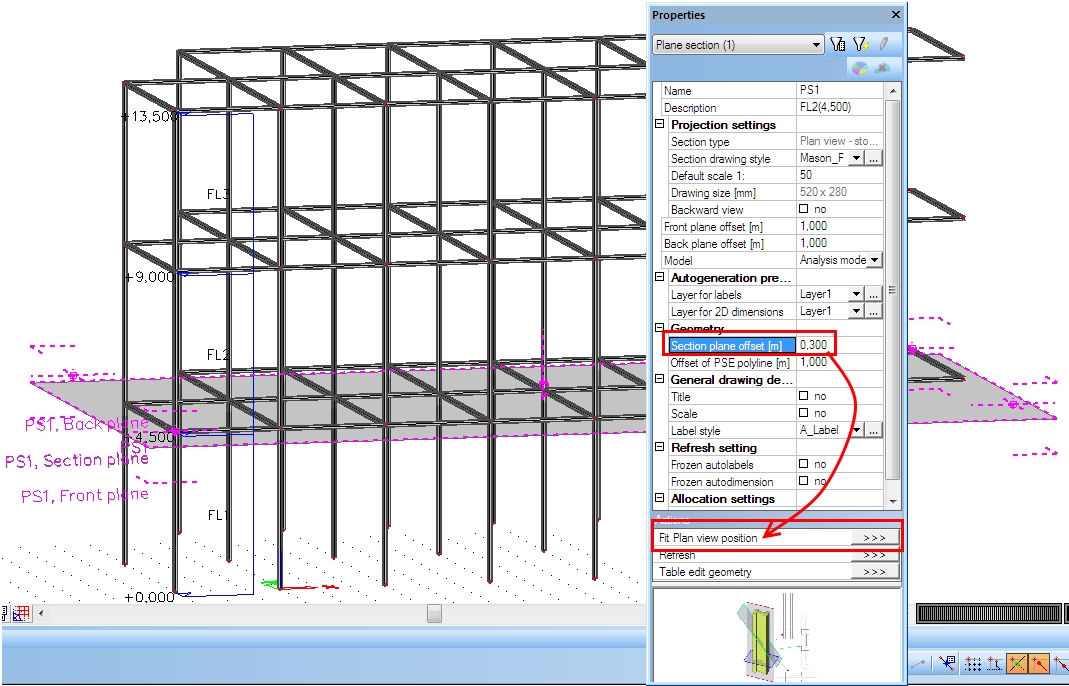
The plan view generated by the storeys is linked to the appropriate level. Any changes are recognized automatically. When the level height is changed the plan view indicates the change. The new action button “Fit Plan view position” appears in the plan view properties. The plan view is moved to the new position after pressing this button.

If the button is used, all manual inserted labels and dimensions to the drawing view are lost. The reason is that the allocation of the plan view is updated and it must not be the same as before.
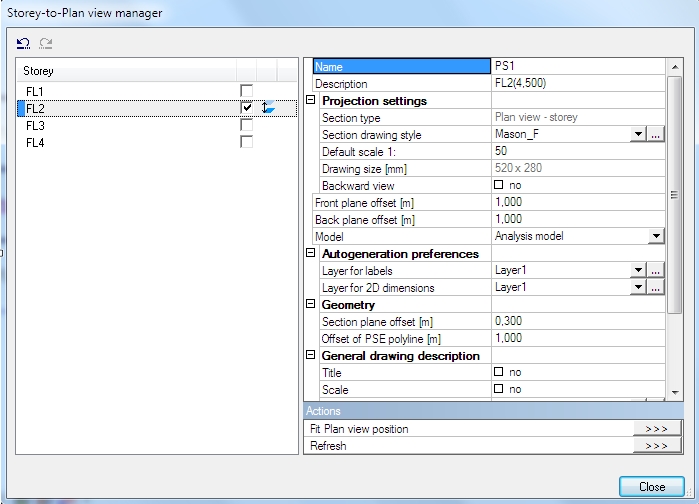
The same situation is indicated by the icon in the Storey-to-Plan view manager.
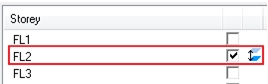
This icon is also visible if the plan view height is changed manually.
The section plane offset is also taken as a change of the position. If it is set to the non-zero value the action button “Fit Plan view position” appears.
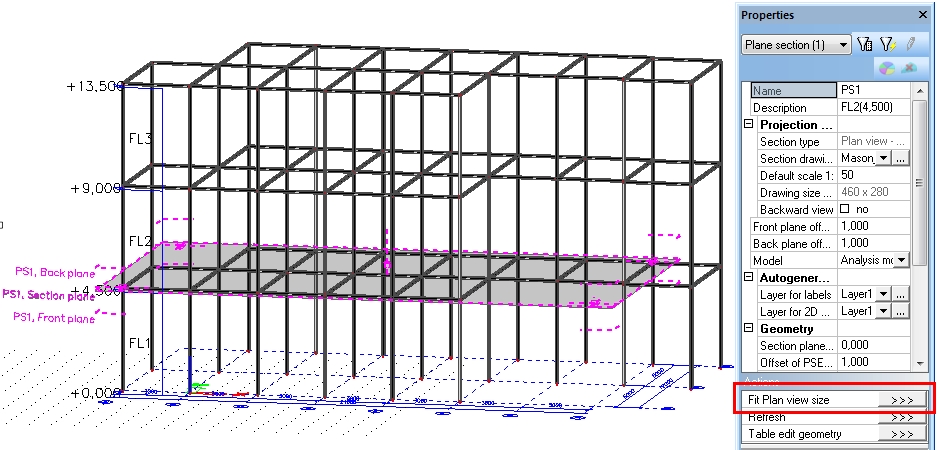
Plan view generated by storeys recognizes the changes in the storey allocation. When storey allocation is updated then also polygon size of the linked Plan view should be changed. The new action button “Fit Plan view size” appears in the Plan view properties.

If the button is used, all manual inserted labels and dimensions are lost. The reason is that the items position and number is updated and it must not be the same as before
The same situation is indicated by the icon in the Storey-to-Plan view manager.
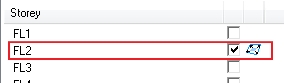
This icon is also visible if the plan view polygon is changed manually.
The allocation of storey is not updated automatically. If new entities should be allocated, the action button “Allocate automatically” must be used.
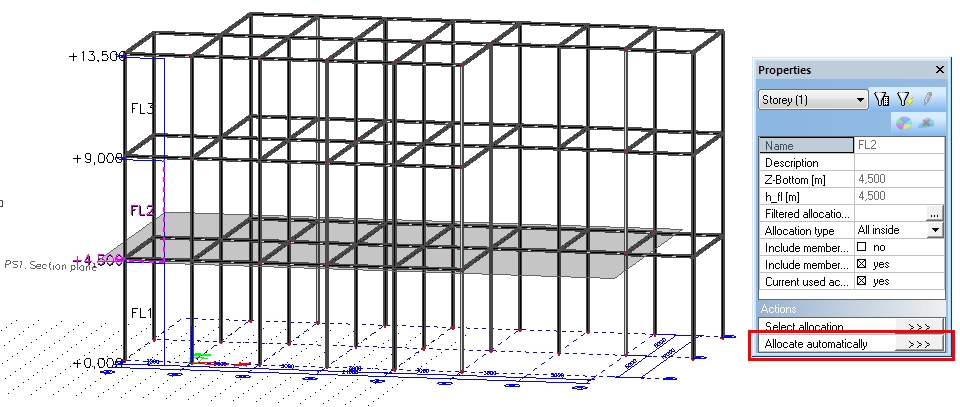
The new action button “Fit plan view size” in the plan section properties is now available.
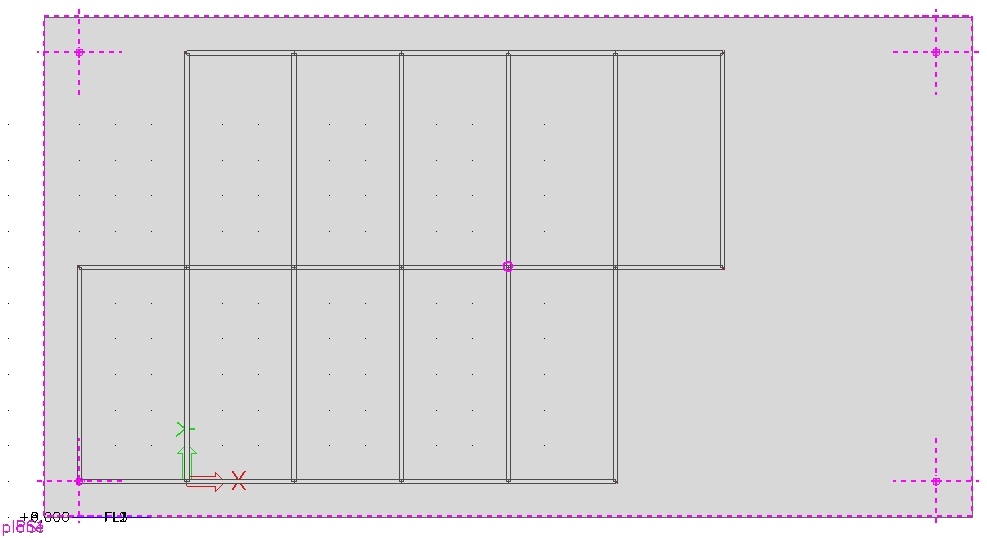
And the result – the plan view is enlarged so now it contains the whole structure.
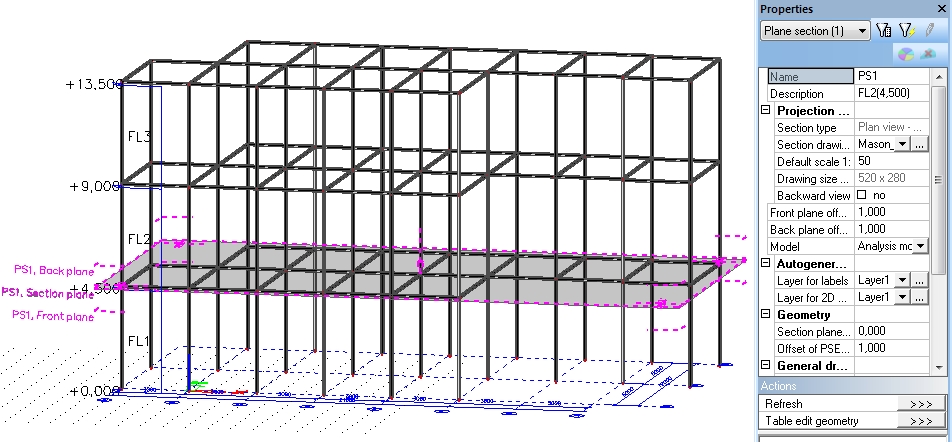
When the allocation and height is changed together then only one action button is displayed. This button updates the size and position together.
Example: