
Example 4: Moment Resisting Connection
In this fourth example, the working of slave data is explained. In addition, the use of point data and nodal data is illustrated
As a practical case a steel moment resisting connection is used.
In this example, a typical beam-column connection is modelled. The column has a height of 4m and the beam is attached in the middle. The beam has a length of 2m. Both members are manufactured in S235 according to EC-EN.
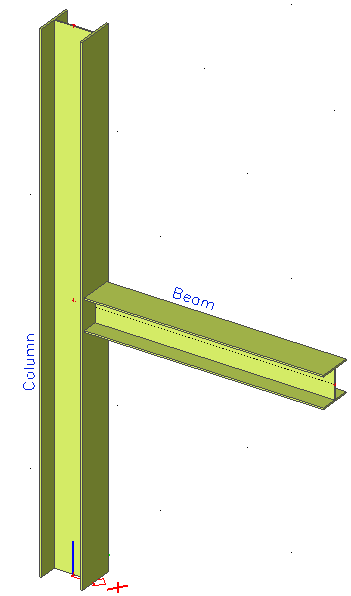
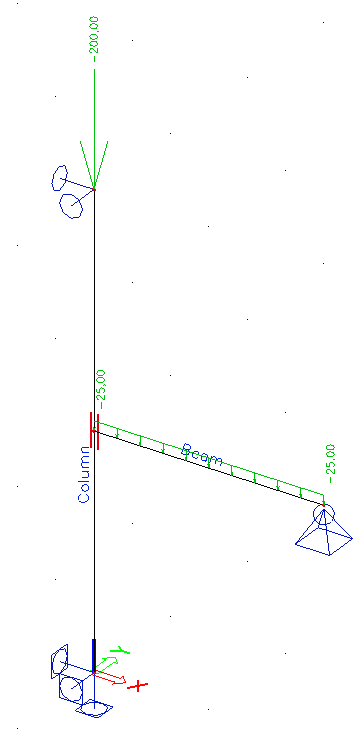
For this example, the beam has a HEA 260 cross-section. The column also has a cross-section of type HEA but can vary (i.e. any type of HEA can be applied).
- LC1: Self Weight of the members
- LC2: Dead Load: 50 kN/m on the beam
- LC3: Live Load: 25 kN/m on the beam, 200 kN on the column
The load cases are grouped into an ultimate limit state combination of type EN-ULS (STR).
The check will be done according to the Excel file “Excel_Example_4.xls”
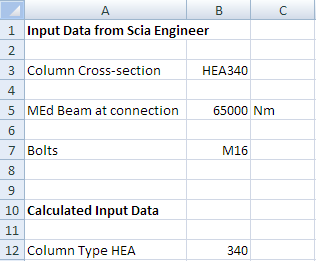
The Excel file contains two worksheets. On the sheet ‘Input’ the input data are set:
The sheet ‘Check’ shows the determination of the moment resistance and the unity check.
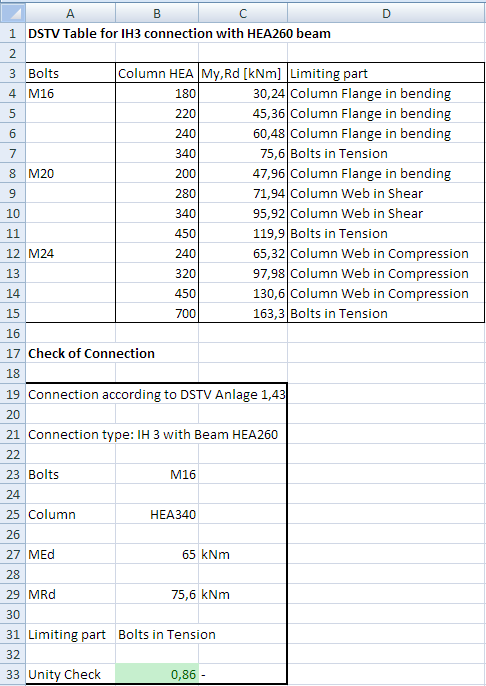
The determination of the moment resistance is based on tabulated values from “DSTV, Anlage 1.43 zum Prüfbescheid II B 3-543-585 vom 14.07.2000” which gives the MRd value of an extended end plate connection for different combinations of beam – column – bolts.
For this example, the beam has been given a fixed cross-section of HEA 260. The bolts can vary between M16, M20 and M24. The column can have any type of HEA cross-section.
As for a typical connection, data of different entities has to be sent to Excel. This can be done using slave additional data:
- From the column the cross-section has to be mapped. No check or output is required. On the column slave data will thus be defined.
- From the beam the end moment has to be mapped. No check or output is required. On the beam slave data will thus be defined.
- The actual Connection Data will include the bolt type and the connection check, combining the input of the previous two ‘slaves’. The connection data will be inputted on the node between the beam and column.
Step 1: Activate the functionality External Application Checks
The first step is to activate the functionality External application checks on the Functionality tab in the Project Data.
Step 2: Create User Defined Additional Data
In the second step, User Defined Additional Data will be defined.
Through Tools > User defined AddData the User Defined Additional Data Library can be opened.
As specified, three types of additional data will be defined:
- Column Data
- Beam Data
- Connection Data
The different input steps are thus repeated for each data.
Step 2.1. (Column) Slave data
First of all the additional data for the column is inputted.
The Name of the additional data is therefore changed to ‘Column’.
Since it concerns slave additional data the checkbox Slave add data is activated.
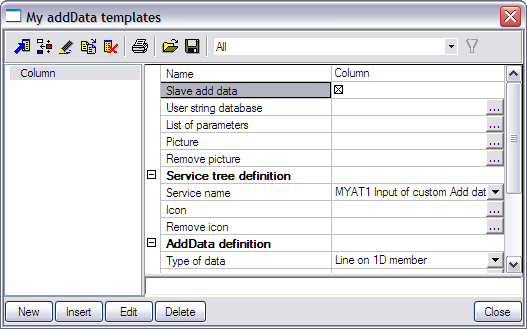
As explained during the first example, slave data can only be used to send data to Excel, not to read data from Excel. Therefore all output options are not available for this kind of data.
Step 2.2. (Column) Define text strings
In the User string database the required strings are defined for the definition of the additional data.
For the column data the strings are modified as follows:
|
Type for which the string is used |
Default string |
String used in this example |
|---|---|---|
|
Service name |
MYAT1 Input of custom add data |
Input of Column Data |
|
Type name |
MYAT1 Custom defined add data |
Column Data |
|
Short name |
MYAT1 MADI |
Col1 |
|
Description |
MYAT1 Description |
Column |
|
Name of check |
MYAT1 Custom check |
Connection Check |
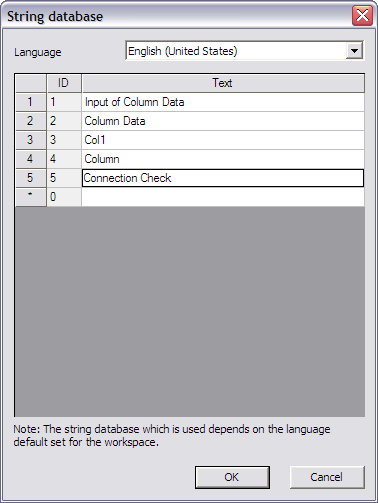
Since slave data have no output and thus no check, the text string for the check will not be used and therefore it is not required to modify it.
Step 2.3. (Column) Define parameters
In this example, the cross-section of the column has to be mapped to Excel. Therefore no additional parameters are required and thus no parameters are defined.
Step 2.4. (Column) Add a picture to the Additional Data
In this example, no picture is added to the column data since this data just represents slave data and does not require any clarifying picture.
Step 2.5. (Column) Define Service Tree
In the next step the Service Tree is defined through the group Service tree definition.
The Service name is taken automatically from the text string database.

In this example, no icon is added to the column data.
Step 2.6. (Column) Define the Additional Data
Using the data from the previous steps, the additional data can now be defined in the group AddData definition.
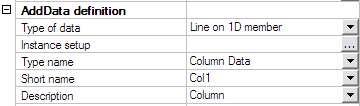
The field Type of data is set to ‘Line on 1D member’.
In this example, only the cross-section of the column will be sent to Excel so also ‘Point on 1D member’ could have been used.
The Type name, Short name and Description are taken automatically from the text string database.
To get an overview of all the data entered in the previous steps the button Instance Setup is used.
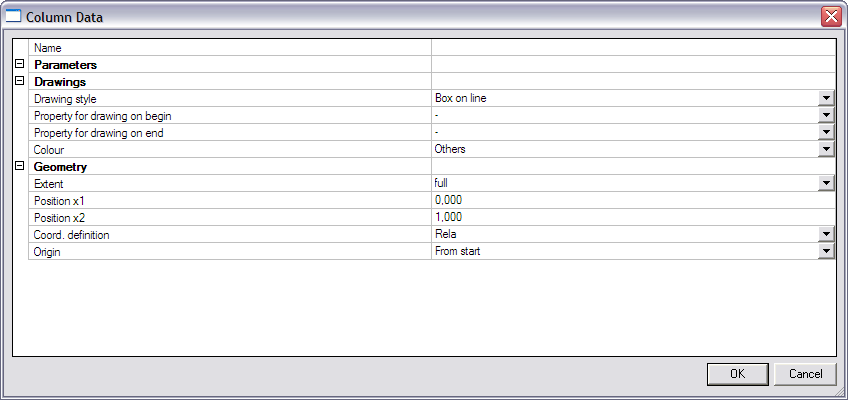
In the Drawings group, the Drawing style is set to ‘Box on line’. For the Colour field ‘Thermal load’ is chosen.

Since no user defined parameters have been inputted, no parameter can be set as Property for drawing on begin/end. These fields are thus left empty.
Step 2.7. (Column) Specify the type of external link
In the External link data group the Type of external link allows to specify which external application will be used.

In this example the link is made with Excel and thus ‘Excel’ is chosen.
Step 2.8. (Column) Define the mapping with the external application
The preparation of the slave column data has now been done, what remains is defining the mapping to Excel.
Through the button Edit external file mapping the mapping dialog is opened.
In this example, the Excel file contains two worksheets. On the sheet ‘Input’ the input data from SCIA Engineer are set:
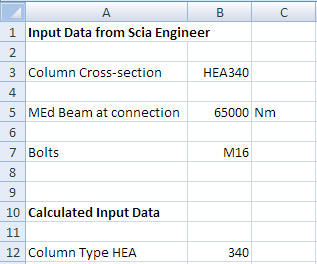
This is the only sheet of importance for the column data since slave data concern only the mapping of input properties.
The following table shows which property should be mapped to which cell:
|
Object |
Property |
Worksheet |
Cell Address |
|---|---|---|---|
|
Cross-Sections |
Type |
Input |
B3 |
The mapping of this property is thus done as follows:
The Object field is set to ‘Cross-sections’.
In the Property field ‘Type’ can then be chosen.
Using the Browse button, the file Excel_Example_4.xls is searched.
After the file has been specified, the Worksheet field contains a list of all sheets. This field is set to ‘Input’.
The Arrays direction is set to ‘Horizontal’.
Finally, in the field Cell address the cell ‘B3’ is typed. Automatically the Current value field will show the current content of the cell, in this case HEA340.
When all input has been done, this mapping is added to the table using the Add button.
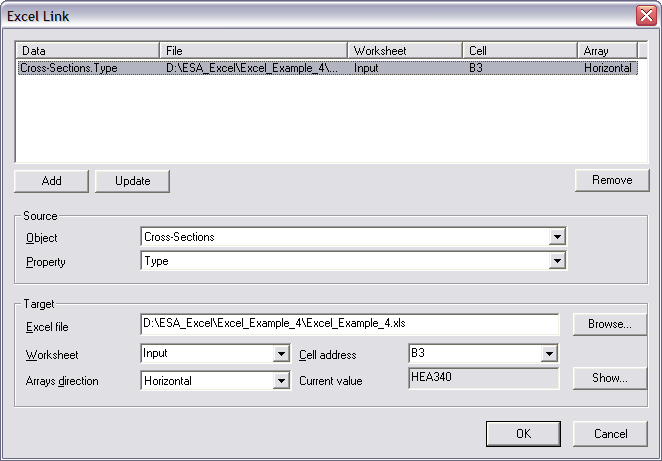
With the input of the mapping, the definition of the column slave data has been completed. In the same way, slave data will now be defined for the beam.
Step 2.1. (Beam) Slave data
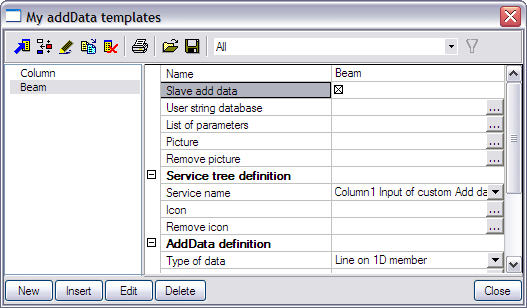
Second, the additional data for the beam is inputted using the button New in the User Defined Additional Data Library.
The Name of the new additional data is changed to ‘Beam’.
Since it concerns slave additional data the checkbox Slave add data is activated.
Step 2.2. (Beam) Define text strings
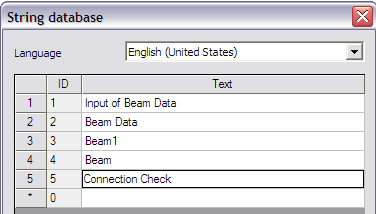
In the User string database the required strings are defined for the definition of the additional data.
For the beam data the strings are modified as follows:
|
Type for which the string is used |
Default string |
String used in this example |
|---|---|---|
|
Service name |
Column1 Input of custom add data |
Input of Beam Data |
|
Type name |
Column 1 Custom defined add data |
Beam Data |
|
Short name |
Column 1 MADI |
Beam1 |
|
Description |
Column 1 Description |
Beam |
|
Name of check |
Column 1 Custom check |
Connection Check |
Step 2.3. (Beam) Define parameters
In this example, the bending moment of the beam has to be mapped to Excel. Therefore no additional parameters are required and thus no parameters are defined.
Step 2.4. (Beam) Add a picture to the Additional Data
In this example, no picture is added to the beam data since this data just represents slave data and does not require any clarifying picture.
Step 2.5. (Beam) Define Service Tree
In the next step the Service Tree is defined through the group Service tree definition.
The Service name is taken automatically from the text string database.

In this example, no icon is added to the beam data.
Step 2.6. (Beam) Define the Additional Data
Using the data from the previous steps, the additional data can now be defined in the group AddData definition.
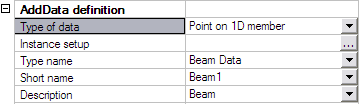
The field Type of data is set to ‘Point on 1D member’. The purpose of this beam slave data is to send the bending moment at the location of the connection. Therefore only one position is required, the end of the beam at which the connection is located.
The Type name, Short name and Description are taken automatically from the text string database.
To get an overview of all the data entered in the previous steps the button Instance Setup is used.
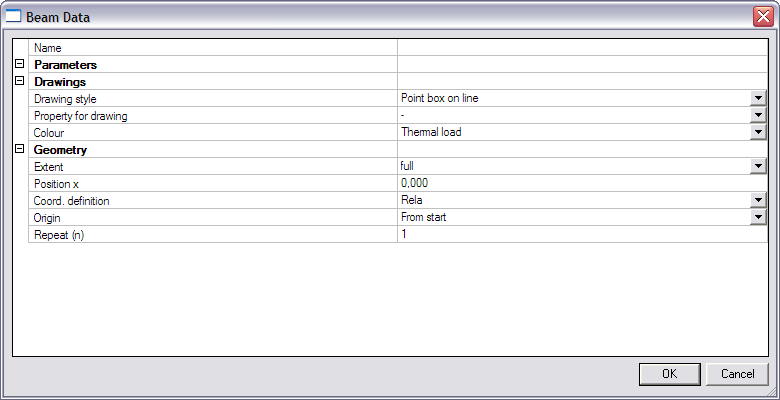
In the Drawings group, the Drawing style is set to ‘Point box on line’. For the Colour field ‘Generated load’ is chosen.

Since no user defined parameters have been inputted, no parameter can be set as Property for drawing on begin/end. These fields are thus left empty.
Step 2.7. (Beam) Specify the type of external link
In the External link data group the Type of external link allows to specify which external application will be used.
In this example the link is made with Excel and thus ‘Excel’ is chosen.
Step 2.8. (Beam) Define the mapping with the external application
The preparation of the slave beam data has now been done, what remains is defining the mapping to Excel.
Through the button Edit external file mapping the mapping dialog is opened.
In this example, the Excel file contains two worksheets. On the sheet ‘Input’ the input data from SCIA Engineer are set:
This is the only sheet of importance for the beam data since slave data concern only the mapping of input properties.
The following table shows which property should be mapped to which cell:
|
Object |
Property |
Worksheet |
Cell Address |
|---|---|---|---|
|
Internal forces on member |
My |
Input |
B5 |
The mapping of this property is thus done as follows:
The Object field is set to ‘Internal forces on member’.
In the Property field ‘My’ can then be chosen.
Using the Browse button, the file Excel_Example_4.xls is searched.
After the file has been specified, the Worksheet field contains a list of all sheets. This field is set to ‘Input’.
The Arrays direction is set to ‘Horizontal’.
Finally, in the field Cell address the cell ‘B5’ is typed. Automatically the Current value field will show the current content of the cell, in this case 65000.
When all input has been done, this mapping is added to the table using the Add button.
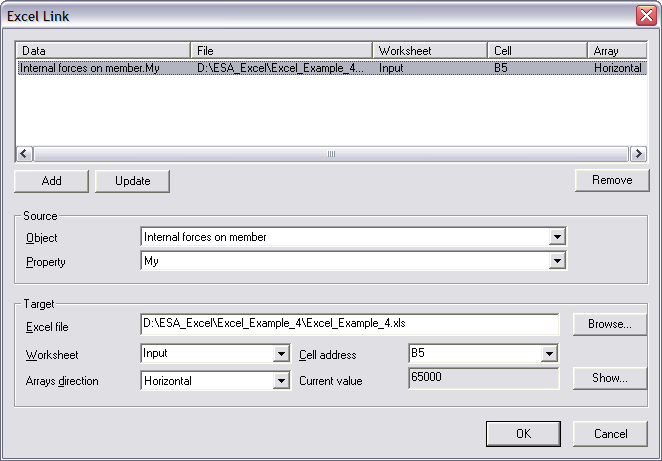
With the input of the mapping, the definition of the beam slave data has been completed. Both column and beam slave data are defined and now in the final step the master data, the connection data will be inputted.
The order of defining additional data is of no importance. In this example, first the slave data was inputted and then the master data. It makes no difference if first the master data would be inputted and then the slave data.
Step 2.1. (Connection) Slave data
Finally, the additional data for the connection itself is inputted using the button New in the User Defined Additional Data Library.
The Name of the new additional data is changed to ‘Conn’.
Since it concerns master additional data the checkbox Slave add data is not activated.
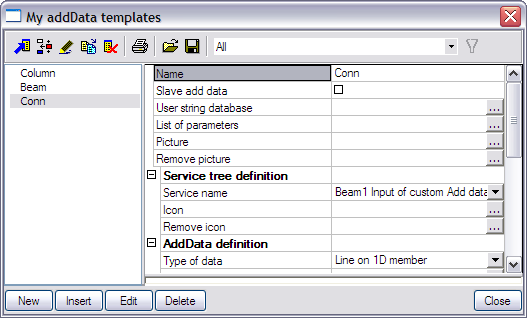
Step 2.2 (Connection) Define text strings
In the User string database the required strings are defined for the definition of the additional data.
For the connection the strings are modified as follows:
|
Type for which the string is used |
Default string |
String used in this example |
|---|---|---|
|
Service name |
MYAT1 Input of custom add data |
Input of Connection Data |
|
Type name |
MYAT1 Custom defined add data |
Connection Data |
|
Short name |
MYAT1 MADI |
Conn1 |
|
Description |
MYAT1 Description |
Connection |
|
Name of check |
MYAT1 Custom check |
Connection Check |
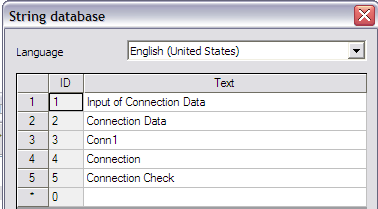
The necessary strings for the definition of the data are defined and in the next step the parameters can be defined.
Step 2.3 (Connection) Define parameters
In this example, the connection will have a combo-box parameter from which the user can select the bolt type.
|
Parameter |
Type |
Combo-box lines |
|---|---|---|
|
Bolts |
Combo-box |
M16 M20 M24 |
Through the button String database the text string database can be directly accessed. This allows a quick input of the strings required for the parameters.
For this example the following strings are added:
|
Strings used in this example |
|---|
|
Bolts |
|
M16 |
|
M20 |
|
M24 |
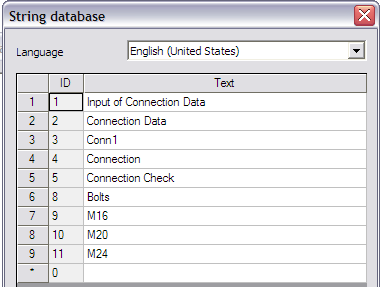
Through the button Add item the parameter is added.
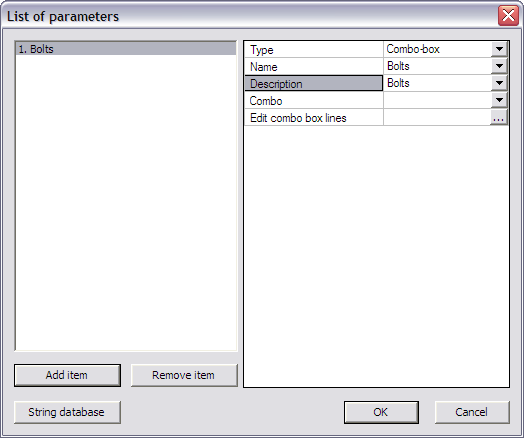
The Type field is set to ‘Combo-box’.
For both the Name and Description fields the string ‘Bolts’ is set.
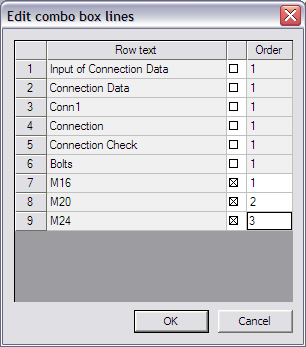
Next, the lines in the combo-box are defined through the edit button Edit combo box lines.
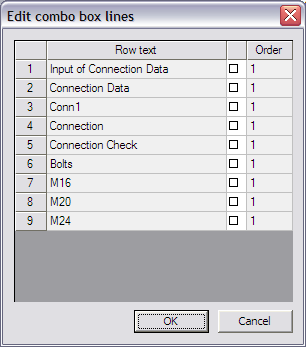
The bolt types inputted in the string database are selected and in the Order column the numbers ‘1’, ‘2’and ‘3’ are inputted.
When closing this dialog, the Combo item in the List of Parameters dialog shows how the combo-box will look like.
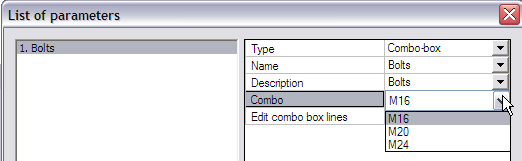
The combo-box has now been inputted and the dialog can be closed.
Step 2.4 (Connection) Add a picture to the Additional Data
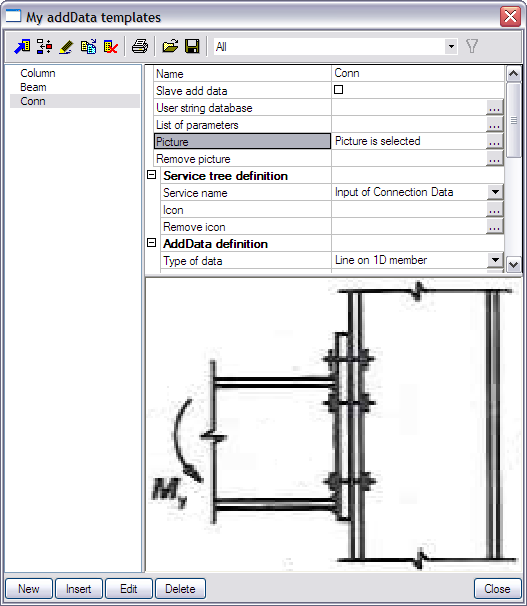
To clarify the use of the additional data and the defined parameters a picture can be added using the Picture button.
In this example the picture Excel_Example_4_Picture.bmp will be used.
Step 2.5 (Connection) Define Service Tree
In the next step the Service Tree is defined through the group Service tree definition.
The Service name is taken automatically from the text string database.
To clarify the Service name, an icon can be added using the Icon button.
In this example the icon Excel_Example_4_Icon.bmp will be used.

Step 2.6 (Connection) Define the Additional Data
Using the data from the previous steps, the additional data can now be defined in the group AddData definition.
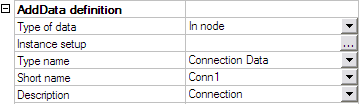
The connection is defined in the node between the beam and column. Therefore the field Type of data is set to ‘In node’.
The Type name, Short name and Description are taken automatically from the text string database.
To get an overview of all the data entered in the previous steps the button Instance Setup is used.
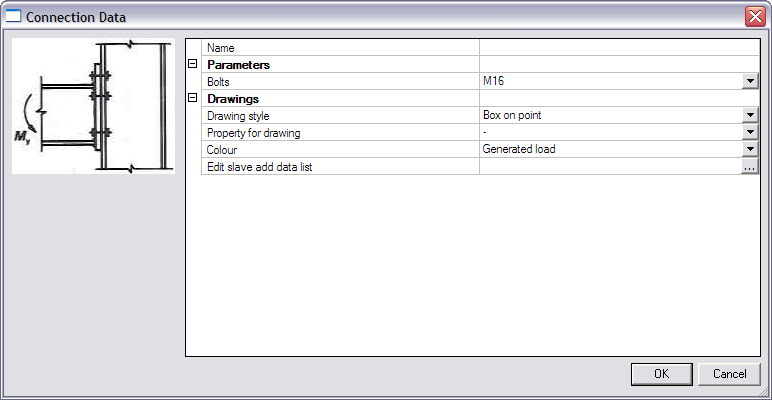
In the Drawings group, the Drawing style is set to ‘Sphere on point. For the Colour field ‘Nodes, rigid arms’ is chosen.

No numerical user defined parameter has been inputted and therefore the field Property for drawing is left empty.
Since the connection data concerns ‘master’ data and the User Defined Additional Data contains also ‘slave’ data (the beam data and column data) a new option is visible: Edit slave add data list. This option will be explained further in Step 3.
Step 2.7 (Connection) Define the Check
In the group Check data the necessary data for the check itself can now be defined.
Note that the defining of check data is only available for the connection data since it was not marked as slave data.
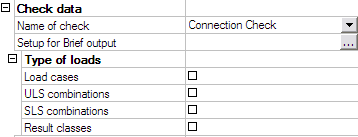
The Name of check is taken automatically from the text string database.
The Type of loads group allows to specify which load types will be available for the check. Only the selected items will be available when executing the check.
In this example, both load cases and an ULS combination are available however the check is only required to be executed for the combination. Therefore only the check-box ‘ULS combinations’ is checked.
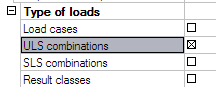
Important remark: In case more than one load type has been activated, the check will be executed SIMULTANEOUSLY for all load types together! This implies for example that the check is done for both a load case and a combination at the same time. This allows the use of special checks: in the Excel file it can be set that a certain check can be done for the load case while a different check is done for the combination. In general, it is recommended to use only one load type.
The final item for defining the check is the Setup for Brief output where the output parameters have to be defined.
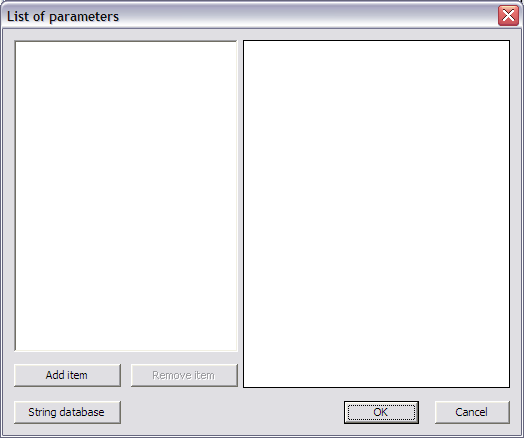
For this example, one output parameters will be defined: the unity check UC of the connection.
|
Parameter |
Type |
Unit |
|---|---|---|
|
Connection UC |
Number |
- |
First of all, through the button String database the text string database is accessed to define the required strings. For this example the following string is added:
|
String used in this example |
|---|
|
Connection UC |
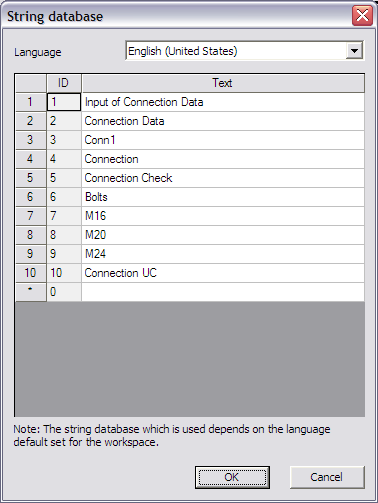
When the string is defined, the parameter is added through the button Add item.
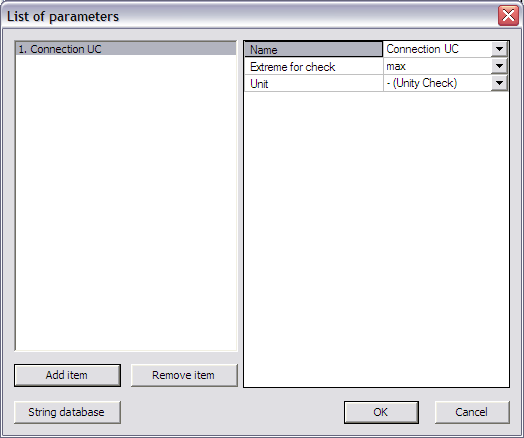
In the Name field the ‘Connection UC’ string is chosen from the string database.
The Extreme for check is left on ‘max’ since the maximal unity check value is extreme in this case.
Since it concerns a unity check, the Unit field is left on ‘– (Unity Check)’.
The check and output parameters have now been defined so in the next step the link can be set.
Step 2.8 (Connection) Specify the type of external link
In the External link data group the Type of external link allows to specify which external application will be used.

In this example the link is made with Excel and thus ‘Excel’ is chosen.
Step 2.9 (Connection) Define the mapping with the external application
All preparation has now been done, what remains is the most important step of the process: defining the actual mapping between properties and parameters of SCIA Engineer and the data fields (i.e. Excel cells) of the external application.
Through the button Edit external file mapping the mapping dialog is opened.
In this example, the Excel file contains two worksheets. On the sheet ‘Input’ the input data from SCIA Engineer are set:
The sheet ‘Check’ shows the determination of the moment resistance and the unity check.
In the column and beam data, the column cross-section and the beam bending moment have already been mapped to Excel. What is left is the mapping of the bolts and the unity check value.
The following table shows which properties should be mapped to which cells:
|
Object |
Property |
Worksheet |
Cell Address |
|---|---|---|---|
|
<<< My input parameters |
Bolts |
Input |
B7 |
|
>>> My output parameters |
Connection UC |
Check |
B33 |
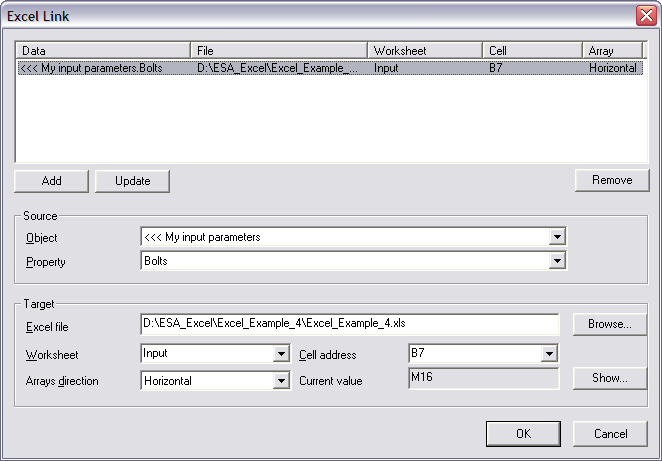
The mapping of the first property is thus done as follows:
The Object field is set to ‘<<< My input parameters’.
In the Property field ‘Bolts’ can then be chosen.
Using the Browse button, the file Excel_Example_4.xls is searched.
After the file has been specified, the Worksheet field contains a list of all sheets. This field is set to ‘Input’.
The Arrays direction is set to ‘Horizontal’.
Finally, in the field Cell address the cell ‘B7’ is typed. Automatically the Current value field will show the current content of the cell, in this case M16.
When all input has been done, this mapping is added to the table using the Add button.
In the same way, the second parameter can be mapped using the above table.
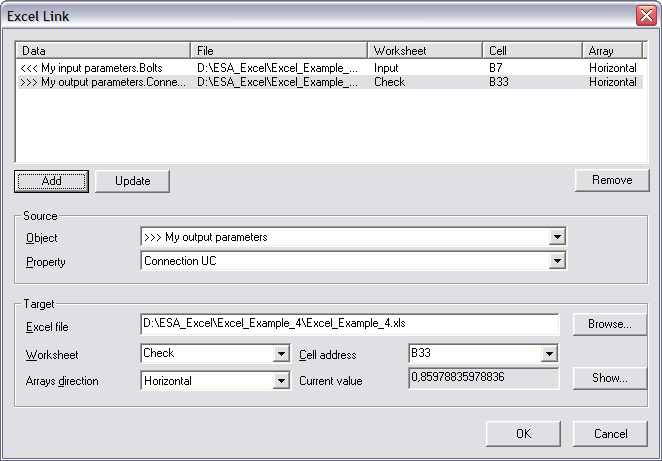
All parameters are now mapped to Excel. The final step left for the definition of the additional data is specifying a Detailed output.
Step 2.10 (Connection) Define the Detailed output
By clicking on Setup for Detailed output, the Detailed output dialog is opened.
In this example, one range will be defined to show the output of the connection check.
|
Caption |
Worksheet |
Top – left cell |
Bottom – right cell |
|---|---|---|---|
|
Connection Check |
Check |
A19 |
C33 |
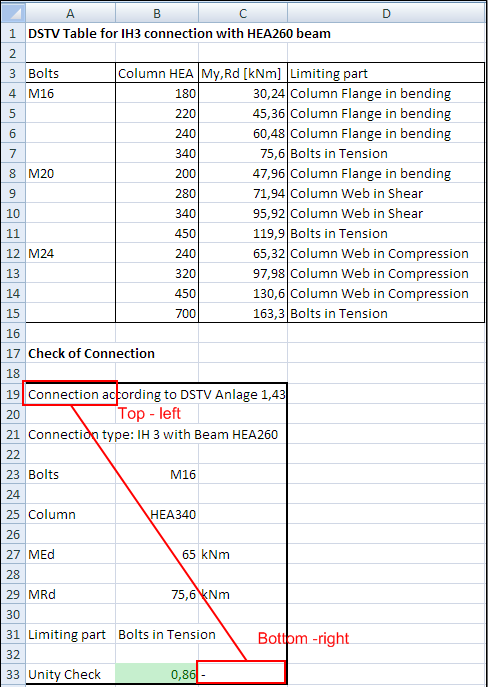
In the Caption field the string ‘Connection Check’ is chosen.
In the Excel file field the file Excel_Example_4.xls is searched using the browse button.
The Worksheet field is set to ‘Check’.
In the Range group the Top - left cell is set as ‘A19’ and the Bottom - right cell as ‘C33’.
When all input has been done, the data is added to the table using the Add button.
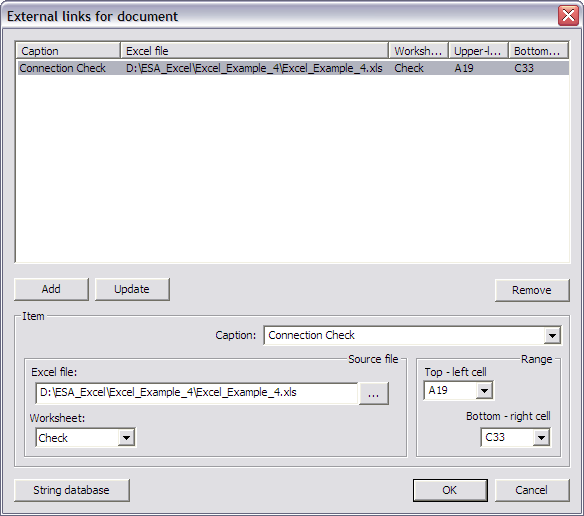
With this final step, the User Defined Additional Data has been fully inputted and the User Defined Additional Data Library can be closed.
Step 3: Input the User Defined Additional Data on members/nodes
After closing the User Defined Additional Data Library a new service will be shown in the SCIA Engineer tree: Custom Check.
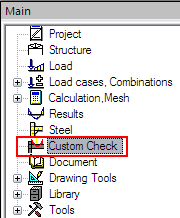
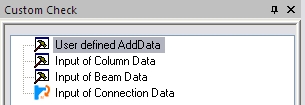
In a first step, the additional data which was defined in Step 2, can now be inputted on the members/nodes. Afterwards, the links will be made between the slave data and the master data.
Step 3.1 Input of additional data
First of all the column data will be inputted on the column. When double clicking on Input of Column Data the dialog with the properties of the data is displayed:
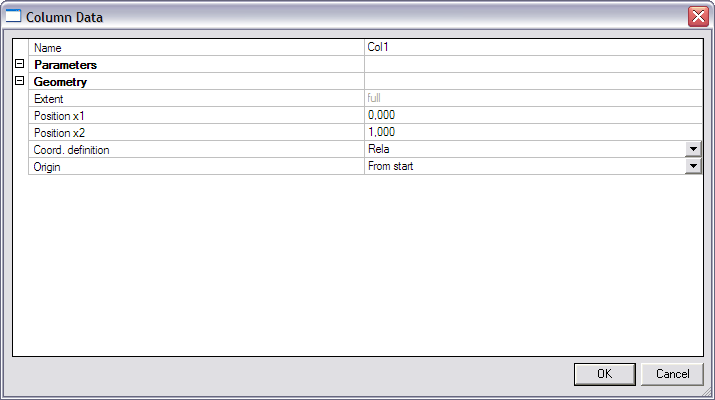
The default values of the dialog are confirmed with [OK] and the data is inputted on the column.
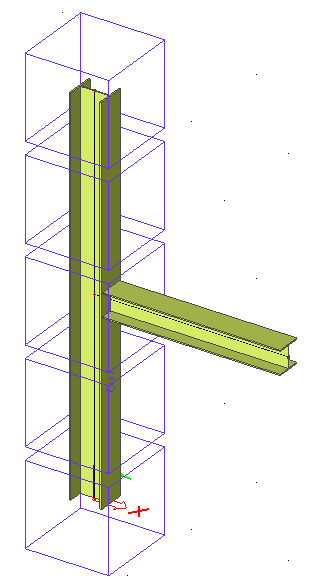
Using the default SCIA Engineer scale buttons the drawing style of the additional data can be shown bigger or smaller.
Next the beam data will be inputted on the beam. When double clicking on Input of Beam Data the dialog with the properties of the data is displayed:
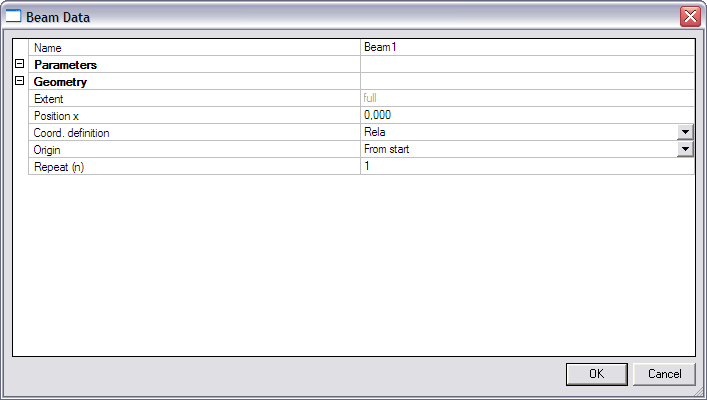
Since the beam data have been defined as ‘Point on 1D member’ data, the position can be set in the Position x field.
For this example, the bending moment is needed at the position between the beam and column. This position is located at the beginning of the beam and thus the Position x field is left to 0.
The default values of the dialog are thus confirmed with [OK] and the data is inputted on the beam.
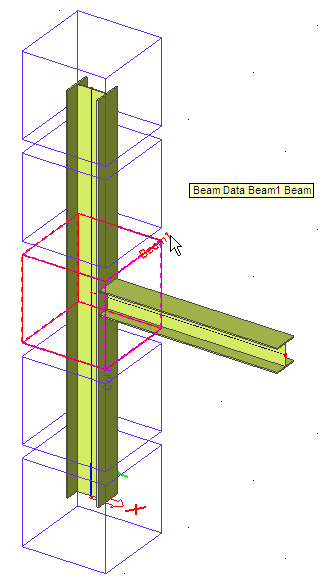
Using the default SCIA Engineer view parameters the names of the additional data can be displayed.
Finally the connection data will be inputted in the node. When double clicking on Input of Connection Data the dialog with the properties of the data is displayed:
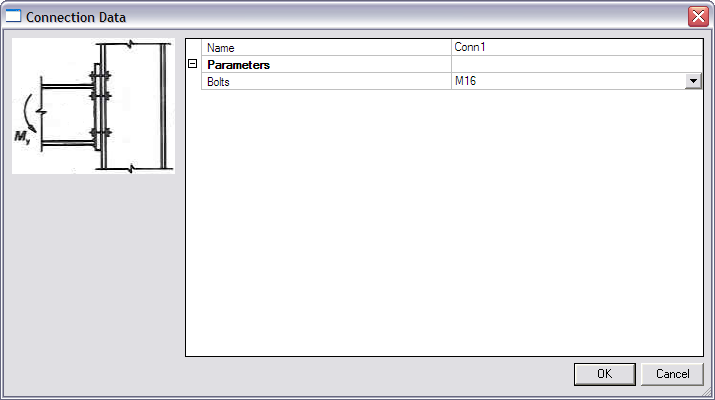
The default values of the dialog are confirmed with [OK] and the data is inputted on the node between the beam and column.
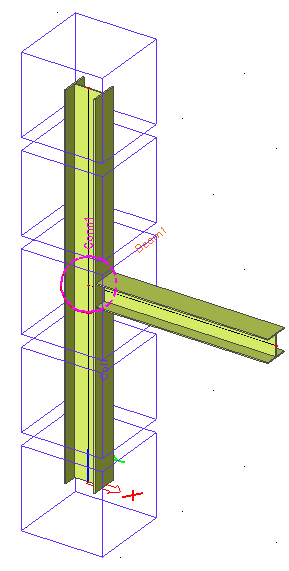
The different data has now been inputted and in the next step they can be linked together.
Step 3.2 Linking slave data to master data
In the User Defined Additional Data library, the column and beam data have been defined as ‘slave data’.
In the previous step, ‘instances’ of this data have been inputted on different members. The final step is to link the correct instances together.
For example, if there would be two beams in this project with additional beam data on both, then it has to be specified which of the two beams should be taken into account for the connection i.e. is the connection between the column and beam 1 or between the column and beam 2.
To specify which slave data instance is linked to which master data instance, the master data has to be selected.
When selecting the Connection data inputted in the node between the beam and the column, the property window shows the following:
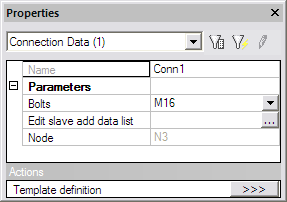
The button Edit slave add data list can now be used to specify which slave data instances are linked to this connection data instance.
When clicking the edit button, the following dialog is displayed:
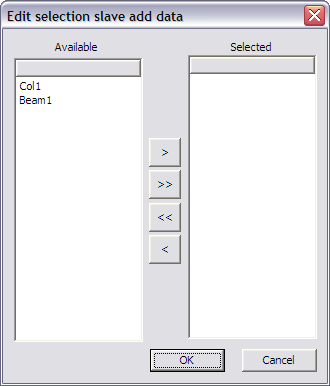
The left column shows all Available slave data instances in the project. In this example the data inputted on the column ‘Col1’ and the data inputted on the beam ‘Beam1’.
Using the arrow buttons, these instances can be added to the Selected column.
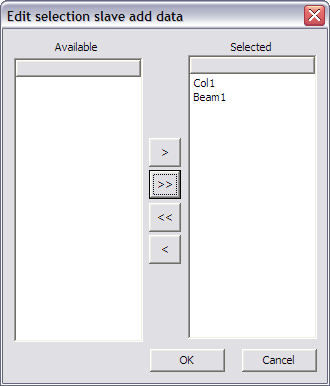
The dialog can then be closed by pressing [OK].
Through these steps, the required slave data have been correctly linked to the master data. During the execution of the check, the mapping defined in the master data as well as in the linked slave data will be sent to Excel. In addition, the output mapping from the master data will be read back from Excel.
Step 4: Execute the Custom Check
In Step 2 the additional data has been defined including the definition of the check, the mapping to Excel… In Step 3 the additional data has been inputted and the slave data instances have been linked to the master data instance. What is left is the execution of the check.
First of all the linear analysis is launched.

When user defined additional data was inputted and the analysis has been executed, the Custom Check service will show a new item: Custom Check.
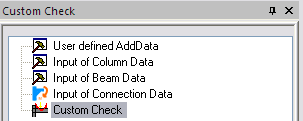
In the property window of the check, the Values field contains only the output parameters of master data since the slave data do not have output parameters.
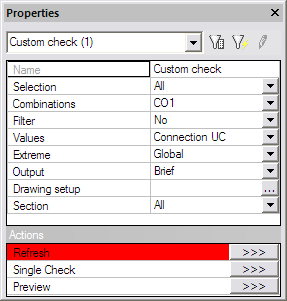
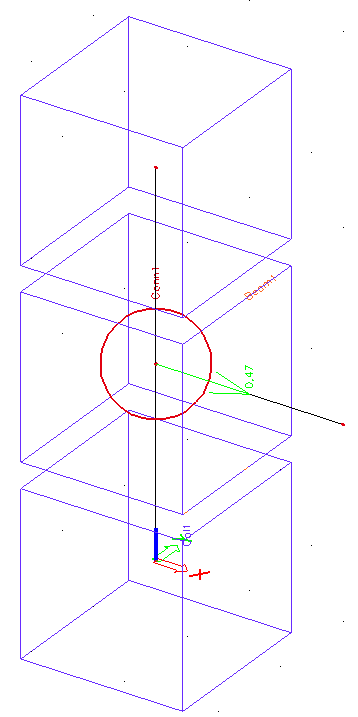
After pressing the Refresh action button the following check result is shown on screen:
As specified in the previous examples, the Brief preview can be shown and the check result can be added to it through the table composer. This results in the following output:
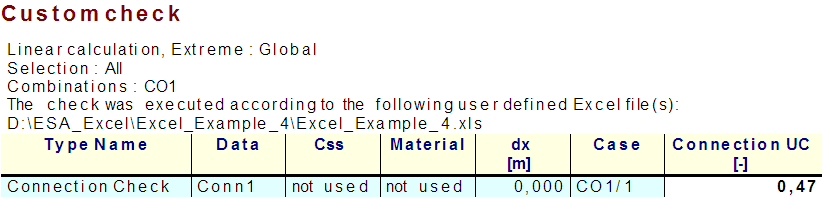
In the same way the Detailed output can be chosen which shows the following results:
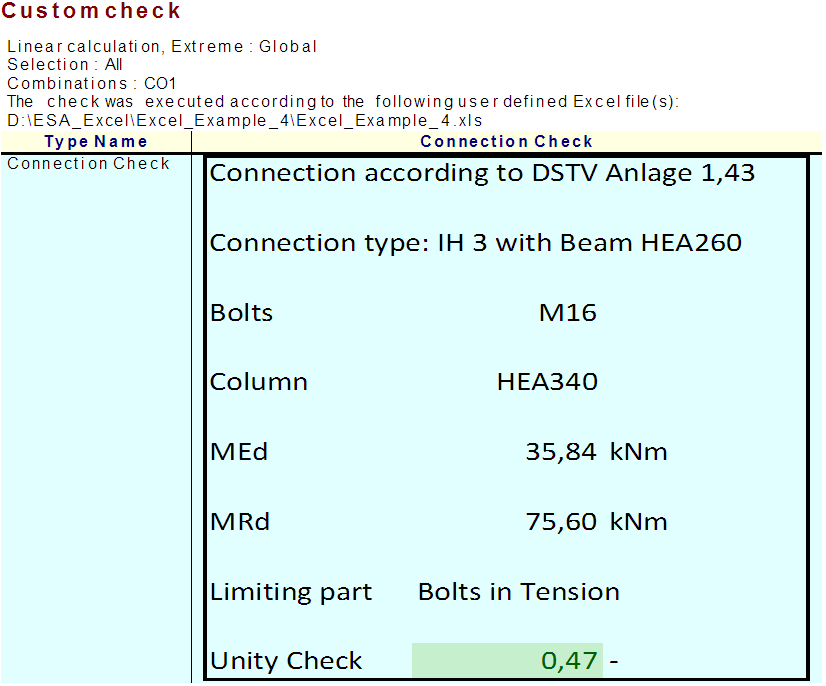
The output shows that parameters from the three user defined additional data types are combined:
- From the Column slave data the cross-section has been sent to Excel.
- From the Beam slave data the bending moment has been sent to Excel.
- From the Connection master data the Bolts have been sent to Excel.
Eventually the resulting unity check defined in the Connection master data is read back from Excel.
In a next step, some changes are made to the input.
First of all the Connection data is selected and the Bolts are set to ‘M20’
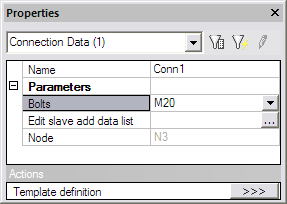
Next, the cross-section of the column is changed to HEA 220.
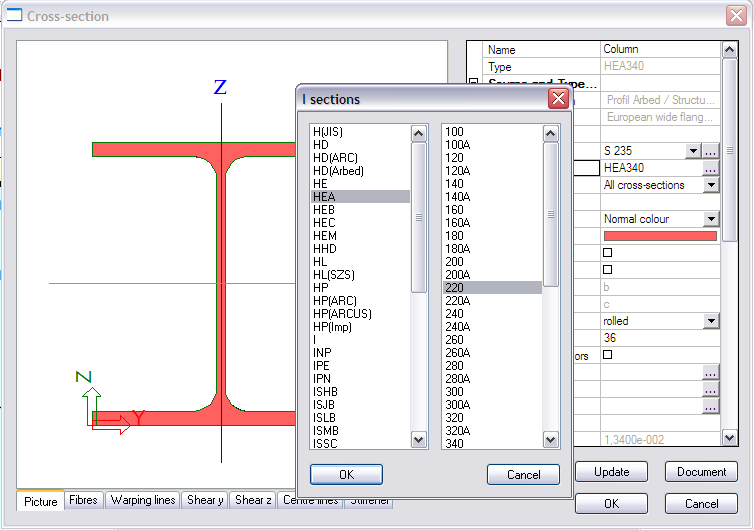
After recalculating the project, the Detailed output now shows the following results:
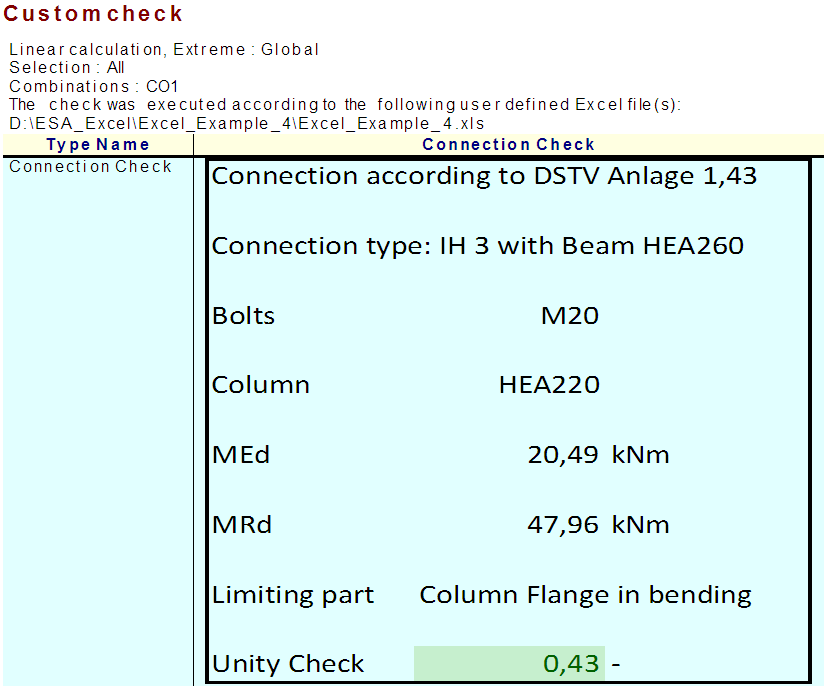
It can be seen that the changes are correctly taken into account.
The check has now been executed and reviewed. To end this step, the document of SCIA Engineer is examined.
In the document, the inputted User defined additional data can be inserted into the document in the same way as any other default additional data.
In the New document item dialog, the Special chapter holds the tables for all user defined additional data.

In this example, three different types of additional data have been defined and can be added to the output.
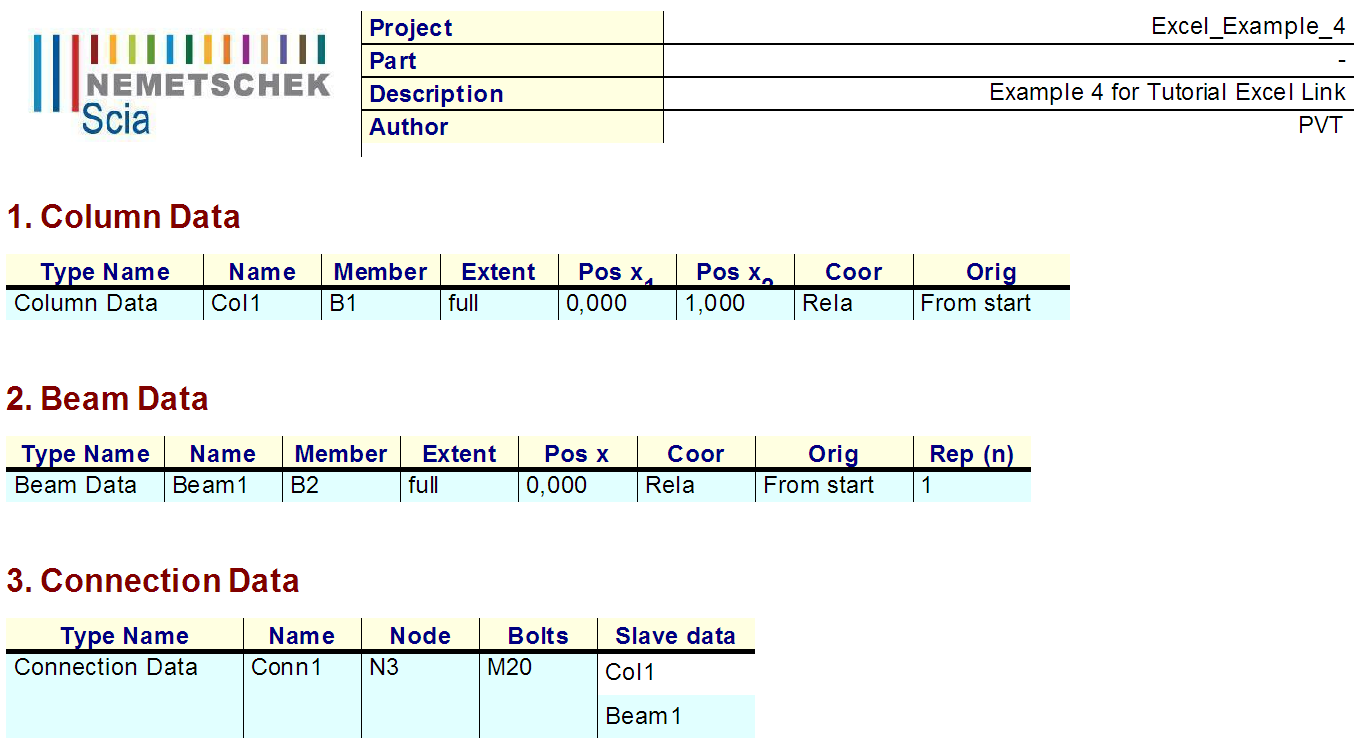
As can be seen, for master data, also the linked slave data are shown. In this example, the slave data ‘Col1’ and ‘Beam1’ have been linked to master data ‘Conn1’. This table provides a quick overview of linked master and slave data.
To finalize this example, one final remark is given concerning master and slave data:
When removing a slave data instance which has been linked to a master data instance, the master data instance will ALSO be removed! The reasoning behind this is the following: in case slave data has been linked to master data, the slave data is required for a correct execution of the check. When the slave data instance is removed, the check for the master data instance becomes incomplete/invalid and thus the master data instance is automatically removed. This way, no accidental wrong check results will be obtained after removing slave data.
Step 5: Save the User Defined Additional Data into a database for future use
If required, this additional data can be saved into a database for future use as illustrated in Example 1.