
Tools in Table input - send table to MS Excel with one click
Table can be easily sent to MS Excel using the related button on the toolbar:
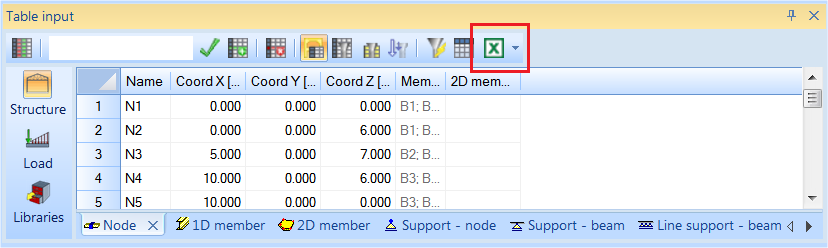
There are two parts of the export button. By simple mouse left click on the main button with icon of Excel, the default or last used settings of tabs are exported and immediately opened in MS Excel. The second part of the button is an arrow with quick settings of what selection of tabs is going to be exported.
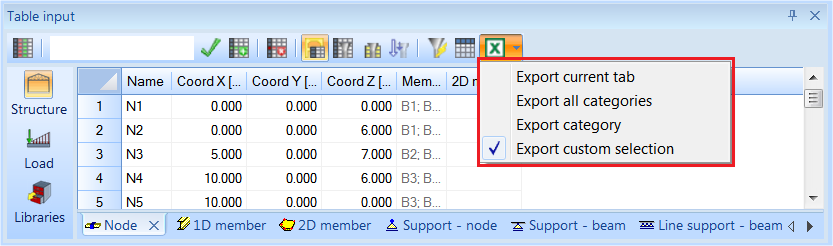
There are four possibilities of simple settings:
|
Export current tab |
Exports only currently displayed tab of Table input. When you use the Export to Excel button for the first time, its default setting is set to Export current tab. |
|
Export all categories |
All tables from all categories (Structure, Load, Libraries) will be exported. |
| Export category |
All tabs from currently open category will be exported. |
| Export custom selection | Additional dialogue will be presented before the export is performed. In this dialogue custom selection from all possible tabs may be made. |
Export custom selection dialogue for table Input is apparent on image below. In the dialogue single entities may be selected and there is also option to select or deselect all or select or deselect whole categories.
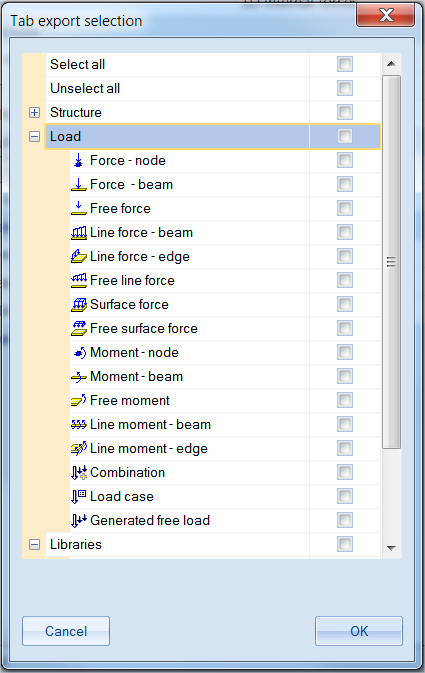
For the first use of export button, its default setting is set to Export current tab to prevent possible long and unintentional export procedure. For next use of export button, the last used settings is used. During the export process it is checked whether the tab is empty or not and empty tabs are skipped during the export. When exported, MS Excel is launched and exported file is presented. This file is stored in temp folder and for future use it is advised to save it to a different location.
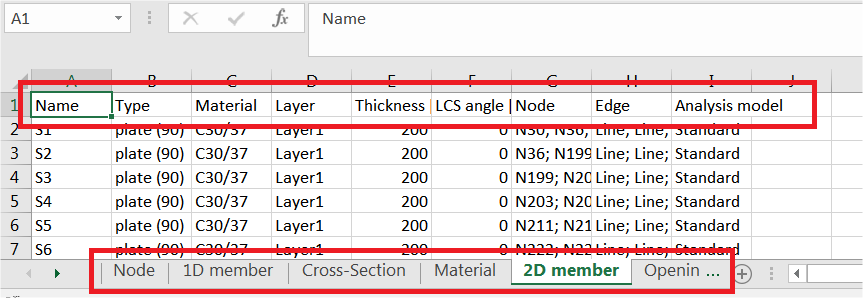
For better readability of the exported Excel sheet is every tab from table input represented by separate named sheet and together with exported data the table header is visible in the Excel file.
Current sorting or filtering of the table grid is not respected during sending to MS Excel. Items are afterwards in Excel sheet sorted in default order. For copying sorted or filtered parts of Table input please use the Copy and Paste (Ctrl+C) and Paste (Ctrl+V).