
Autodesign parameters and criteria
This chapter describes all buttons, settings and functionality in details for a typical thin-walled geometrical section.

Property

Name
Defines the name of the optimisation (criteria).
Selector switch
Enables you to parameterize Autodesign item using a library type of parameter
Type of loads
Autodesign may be performed for load cases, load case combinations, result classes, etc.
Load
Specifies the particular load case, combination, etc. for which the selected cross-section type will be optimised.
Autodesign type (informative)
Tells the type of the optimisation. Cross-section steel check in this case
Item count (informative)
Shows the number of defined Autodesign items.
Parameters
The displayed parameters depend on type of used cross-section.
Autodesign parameters for rolled and cold-formed cross-sections
The user may control the process of Autodesign by means of a set of parameters.
Check parameter
Maximal check
This parameter tells the program what is the maximal allowable value for a satisfactory check.
Maximum unity check
This item shows the found maximal check result for the optimised cross-section.
Shape parameters for Autodesign
Sort by height
The sequence of cross-sections is based on the height.
Sort by A
(sectional area) The sequence of cross-sections is based on the sectional area.
Sort by Iy
(moment of inertia) The sequence of cross-sections is based on the moment of inertia.
Buttons for manual Autodesign
Set value
This button enables the user to set manually the required value of selected dimension (see above).
Next down
This button finds one-step smaller cross-section according to the defined shape parameters (see above).
Next up
This button finds one-step larger cross-section according to the defined shape parameters (see above).
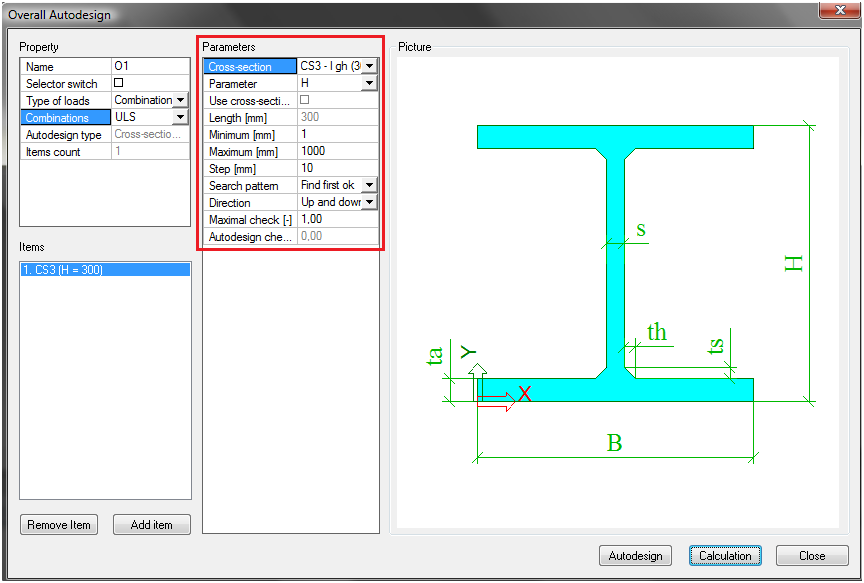
Autodesign parameters for welded and solid cross-sections
The user may control the process of Autodesign by means of a set of parameters.
Cross-section
Defines the cross-section type to be optimised.
Parameter
Selects the dimension (e.g. section depth, width, etc.) that will be optimised. All dimensions of optimized item are offered for selection. The optimized item is displayed in the part Items according to the selected parameters (see above CS3 (H=300)). There is also possibility to select Advanced Autodesign (for more information see chapter Edit Advanced Autodesign).
Use cross-section list
Enables you to use predefined values of one dimension according to the list defined in the Cross-section list library. This library is stored in Libraries > Structure, analysis > Cross-section list.

There is a possible to define three types of cross-section list (see the following figure). Cross-section list type Dimension list can be used for Autodesign only.


Length (informative)
Shows the current size of the selected dimension.
Minimum
Defines the minimal applicable size for the optimised parameter.
Maximum
Defines the maximal applicable size for the optimised parameter.
Step
Defines the step for the Autodesign.
Search pattern
Combobox (Find first OK / Find from all) - option enabling to find first solution which fits the requirements or the best from all the solutions.
Direction
Combobox (Up and down / Up) – option that specifies the direction of searching for the optimized solution.
Maximal check
Defines the maximal acceptable value of the unity check of the optimised cross-section.
Autodesign check (informative)
Shows the unity check for the optimised connection.
Edit Advanced Autodesign
This option is seen only if Advanced Autodesign is selected as the parameter. Advanced Autodesign enables to optimize several or all parameters of a cross-section in one step. It is possible to use dependencies between parameters and use cross-section list as well.

All items are described in the following table.
|
Item |
Description |
|---|---|
|
Parameter |
Parameter which needs to be optimized |
|
Value |
Value of the optimized parameter |
|
Autodesign |
Checkbox if the parameter should be optimized or not. Inactive when Related to is assigned to some parameters |
|
Related to |
Relation between parameters. Selected (dependent) parameter can be optimized depending on the optimization of other parameter. Inactive when Autodesign is YES. |
|
Ratio |
Ratio gives the relation between the optimized parameter and dependent parameter, see above (value B calculated as 0.5 * optimized value H). Inactive when Related to is No. |
|
List |
Link to Cross-section list library. The selected parameter can be optimized according to the requirements stored in the Cross-section list library (dimension list) |
|
Step |
Defines the step for Autodesign |
|
Min. |
Defines the minimal applicable size for the optimised parameter |
|
Max |
Defines the maximal applicable size for the optimised parameter |
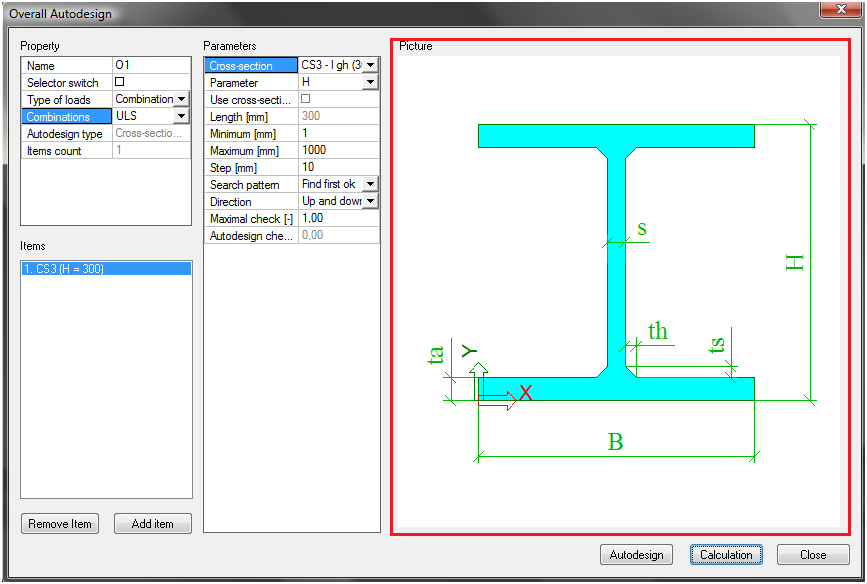
Picture
The picture shows the shape of the optimised item (cross-section, pad foundation or the symbol of the bolted diagonal connection etc).
Control buttons

Autodesign
Performs the optimisation for the defined Autodesign items.
Calculation