
Performance tips
The chapter contains several tips which can help to balance performance and quality of output according to current needs of the user. It contains also some general remarks related to performance of SCIA Engineer.
Rendering
The rendering of model (see also Environment settings) is based on OpenGL technology. There are several settings which influence quality and speed of displaying of the model.
The most significant changes in displaying speed and quality can be set via Main menu > View > Global UI settings > Environment - UI settings.
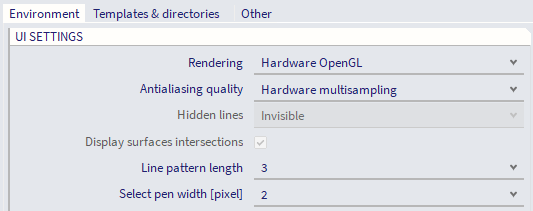
In the setting Rendering the user can select between following possibilities:
- Hardware OpenGL : all calculations are done in the graphic card. This is fastest way of drawing.
- Hardware OpenGL (full): similar to Hardware OpenGL except adds some additional rendering capabilities.
- No : also very fast way of drawing of the model, however in this the model is displayed only as wired . This selection is useful in case of problems with graphic card.
- No (calculate hidden lines) : very slow way of displaying of the model. In this case visibility of lines is calculated by the processor
- Software OpenGL (emulation) : also very slow way of displaying. It provides the same output as "Hardware OpenGL", but all calculations are done by the processor, This can be useful in case of problems with graphic card.
Antialiasing quality can make lines smooth but time needed for drawing of the picture is multiple times longer.
Antialiasing does not need to be switched permanently ON. it can be switched ON just for selected pictures (in gallery, in Engineering Report, in document). It is also possible to set level of antialiasing for pictures which are saved into clipboard. See also Antialiasing.
Another setting related to rendering which can influence the speed of drawing is in setting of View parameters. Mode Rendered is faster than Rendered with edges however the speed difference is not so significant.

Drawing of lines
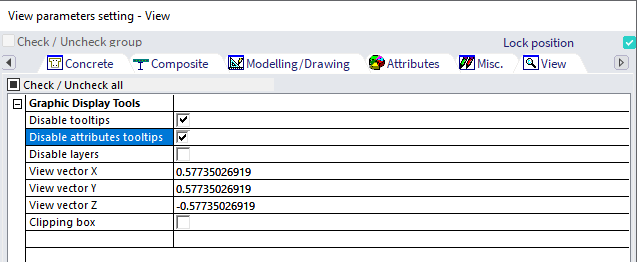
In case of projects with many drawing lines (e.g. imported from DWG), the speed of drawing can be increased (and memory consumed by drawing objects decreased) by disabling tooltips (and attribute tooltips).
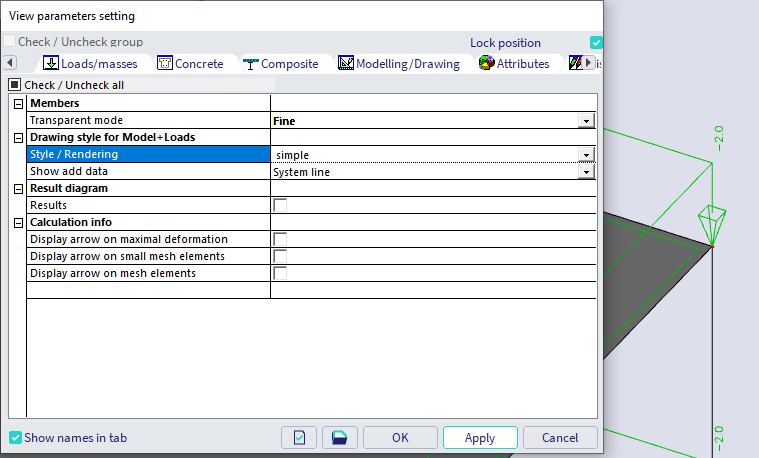
This settings can be done in View parameters setting.
Drawing of structure nodes
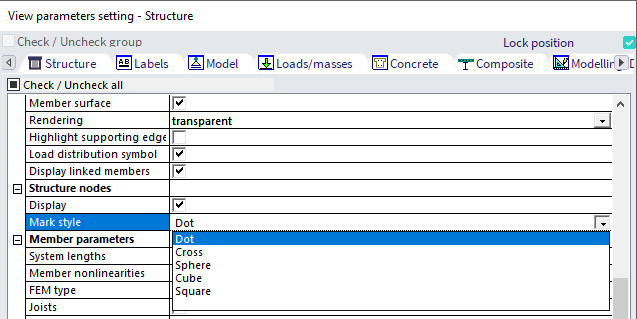
In the View parameters setting it is possible to select one of available types of displaying structure nodes (or to switch them completely OFF). Dot is significantly faster than Sphere.
Drawing of loads
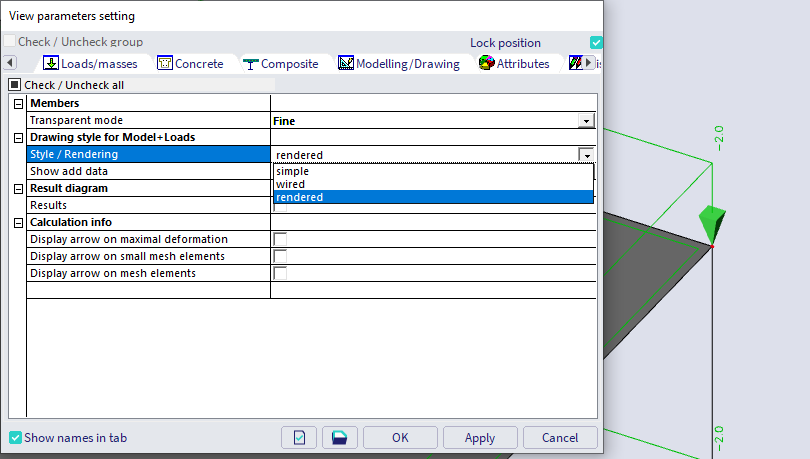
In case the project contains many loads the way of their displaying can significantly reduce the speed of drawing. Switching of drawing style to Simple or Wired is very recommendable in case of model with many loads (e.g. generated loads).
Changing view point in 3D window
Each change of view point need recalculation of picture displayed and the screen. This recalculation can be accelerated by the checkbox in the Advanced graphic setup.
Switching the acceleration ON causes small time gap before the manipulation with view point starts (informations must be loaded into graphic card), then the manipulation is fully calculated by graphic card which is very fast.
Zooming IN and OUT using the mouse wheel is by the operation system presented as a set of small zooming steps. During each this zooming steps the above mentioned time gap occurs. Therefore it is much faster to use Ctrl+Shift+Right mouse button while moving the mouse up/down to zoom IN/OUT..
Geometry / Graphics
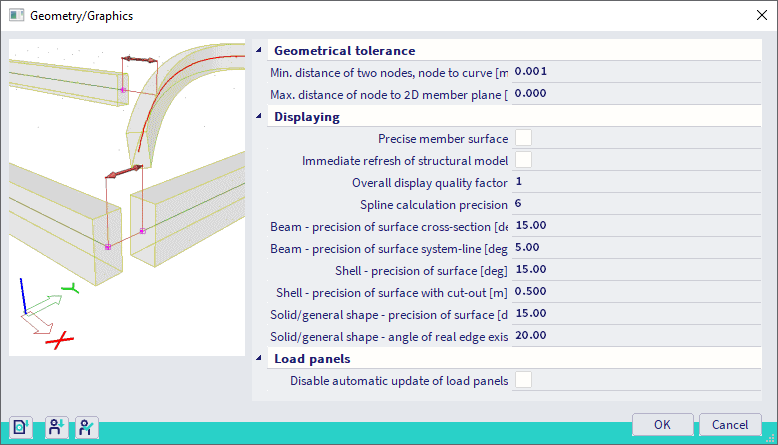
This setting (Main menu > Tools > Geometry/Graphics settings) defines the precision of drawing of different types of entities. Higher precision can reduce the speed of displaying and vice versa in case of big number of those entities.
Cross-section analysis
By default, thick-walled cross-sections are analysed using the advanced 2D FEM method which is required for an exact shear and torsional analysis.
In case however shear and torsion are of less importance, the 2D FEM method can be de-activated through Main menu > Tools > Cross-sections settings.
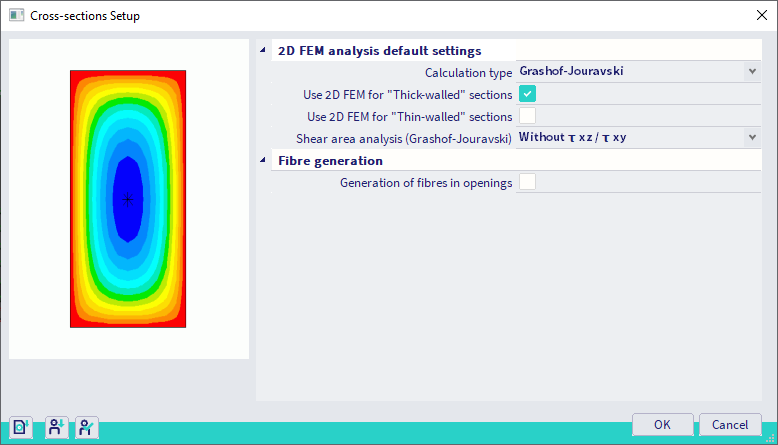
This will lead to a significant reduction of the time needed to run the analysis, especially in case arbitrary members are used.
Setting of system
The SCIA Engineer uses very often files on hard drive in the folder with Temporary files. Therefore it is essential to put this folder on fast hard drive. The best is to use the SSD drive. The increase of the working speed and SCIA Engineer response is significant.
It is also essential to exclude the folder with Temporary files from antivirus checking. Files can change very often in this folder and antivirus can block SCIA Engineer to work with them until they are verified. This can lead to significant decrease fo the working speed and sometimes can lead even to crashes of SCIA Engineer.