
Import into the Paperspace gallery
DWG, DXF and VRML files can be imported as a picture or as a drawing.
Importing a picture
This function imports the DWG, DXF and VRML file as a "standalone" picture. The picture can be placed anywhere to the drawing, resized, moved, etc.
Procedure to insert a picture from DWG or DXF file
-
Open the Paperspace gallery.
-
Open or create a drawing.
-
Start function Insert picture > Insert picture from DWG or DXF file.
-
Two file types are available:
-
-
AutoCAD R12, R13, R14, 2000 (*.dxf)
-
AutoCAD R12, R13, R14, 2000 (*.dwg)
-
-
Select the file and open it.
-
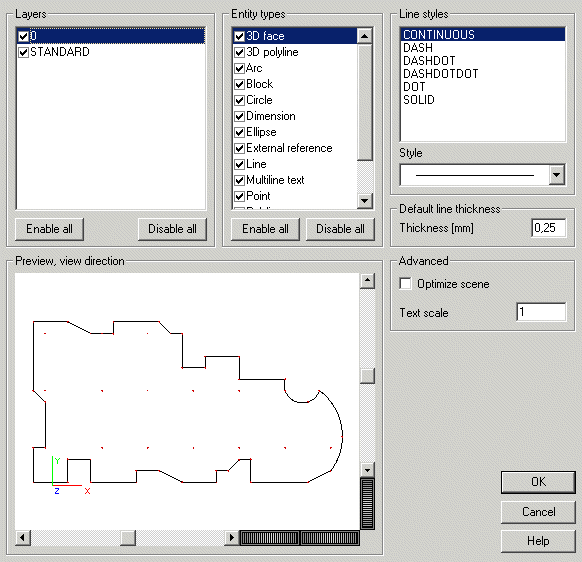
Import properties dialogue is opened on the screen.
-
Adjust the required properties (see below) and confirm.
-
Use the mouse to position the picture and the left mouse button to drag the size of the picture on the drawing.
Procedure to insert a picture from VRML file
-
Open the Paperspace gallery.
-
Open or create a drawing.
-
Start function Insert picture > Insert picture from VRML file.
-
Select the file and open it.
-
Use the mouse to position the picture and the left mouse button to drag the size of the picture on the drawing.
Layers
This list box contains the layers that were defined in the original DWG/DXF file. Only selected layers are shown in the preview window of the Import dialogue.
Entity types
This list contains available entity types. Only selected types are shown in the preview window of the Import dialogue.
Line styles
This window contains all the line styles that are used in the imported file.
Style
This box offer the styles of a line that can be used in the program. They can be assigned to individual line types from the original file.
Default line thickness
Lines in DWG/DXF files may have either specific thickness or default thickness. In order to avoid using unknown thickness lines, the import dialogue enables you to define the numerical value for the default thickness.
Optimize scene
If ON, the lines with the same properties are joined together and drawn at the same time.
Text scale
Specifies the scale of the text.
Preview, view direction
The view in the preview can be adjusted using the standard SCIA Engineer mouse+key controls (shifted, rotated, zoomed in/out).
Importing a drawing
This function imports the DWG/DXF file as a drawing, i.e. it is added to the current drawing as a new part of it. The "size" of the imported drawing can be defined through parameter Scale.
Procedure to insert a drawing from DWG or DXF file
-
Open the Paperspace gallery.
-
Open or create a drawing.
-
Start function Insert picture > Insert drawing from DWG or DXF file.
-
Two file types are available:
-
-
AutoCAD R12, R13, R14, 2000 (*.dxf)
-
AutoCAD R12, R13, R14, 2000 (*.dwg)
-
-
Select the file and open it.
-
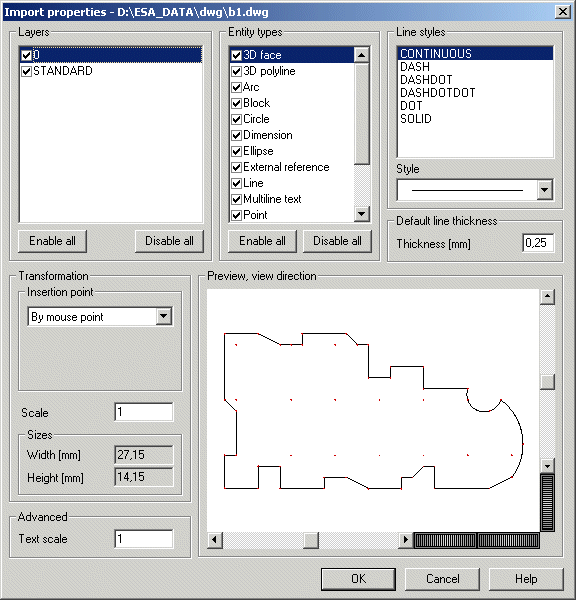
Import properties dialogue is opened on the screen.
-
Adjust the required properties (see below) and confirm.
-
Use the mouse to position the imported drawing to the current drawing.
Layers
This list box contains the layers that were defined in the original DWG/DXF file. Only selected layers are shown in the preview window of the Import dialogue.
Entity types
This list contains available entity types. Only selected types are shown in the preview window of the Import dialogue.
Line styles
This window contains all the line styles that are used in the imported file.
Style
This box offer the styles of a line that can be used in the program. They can be assigned to individual line types from the original file.
Default line thickness
Lines in DWG/DXF files may have either specific thickness or default thickness. In order to avoid using unknown thickness lines, the import dialogue enables you to define the numerical value for the default thickness.
Transformation – Insertion point
The imported drawing can be placed to a specified place in the current drawing (e.g. bottom left corner, centre, etc.). The meaning of individual options is clear from the name of the option.
Note: When option By mouse two points is selected, the input box Scale is hidden. The two points define the size of the imported drawing and the Scale parameter becomes redundant.
Scale
Specifies the scale for the imported drawing.
Text scale
Specifies the scale of the text.
Preview, view direction
The view in the preview can be adjusted using the standard SCIA Engineer mouse+key controls (shifted, rotated, zoomed in/out).