
Configuring/updating a floating license

|
This guide is composed for server, student or try-out licenses. If you have a student or try-out license, just follow this side and ignore all mentioning of server and client or USB key. For student or try-out license all these steps are done on the same machine (without USB key). |
Step 1 (server): Check if SCIA License Server (FlexNET) is installed
|
On the machine where you want to load in the licenses, make sure SCIA License Server 3.0.2 (or newer) is installed (under Control Panel à Programs). If necessary, download SCIA License Server. (http://scia.net/en/support/downloads/setup-flexnet-scia-license-server)
Questions/problems? à See the chapter about "Step 1. Installation of SCIA License Server (FlexNET)" - SCIA Engineer keeps saying license server is outdated |

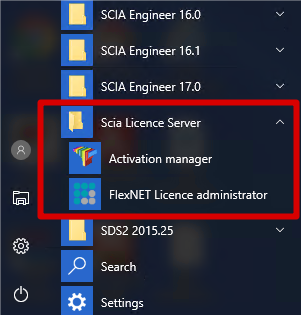
Step 2 (server): Open the activation manager and activate the license
Open the activation manager on the machine where you want to load in the licenses:
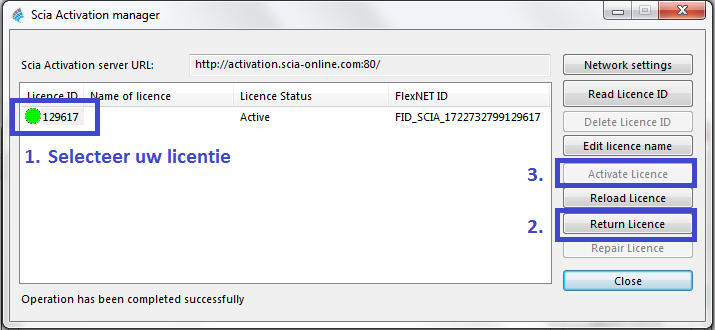
- Select the license (you can add it through Read Licence ID by selecting the .LID file);
- Click on (if it’s greyed out, then go directly to Activate License);
- Then hit (the circle before the Licence ID number will become green).
|
Important: wil l no t work through remote desktop if you have a USB license key! You must be physically behind the machine (for virtual machines, use the console (mostly vSphere)). (this remark does not apply on student or try-out licenses) |
Questions/problems?
à Go to the chapter about "Step 2. Using the Activation manager"
- Where can I get this lid file?
- What is ‘updating’ your license?
- What are the license statuses?
- A message appears when I click on ‘Activate License’
Step 3 (server): Open FlexNET License Administrator
Open the FlexNET License administrator. See step 1 for the shortcut.
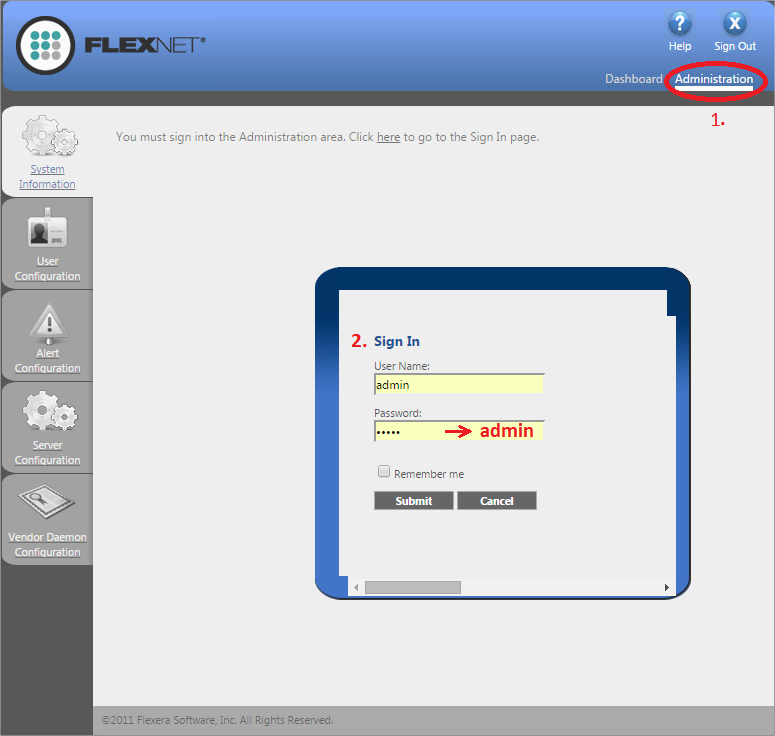
- Go to Administration (the top right button). The default username and password is admin. If the password is changed (after 1st login), then the new password must be used (username remains admin).
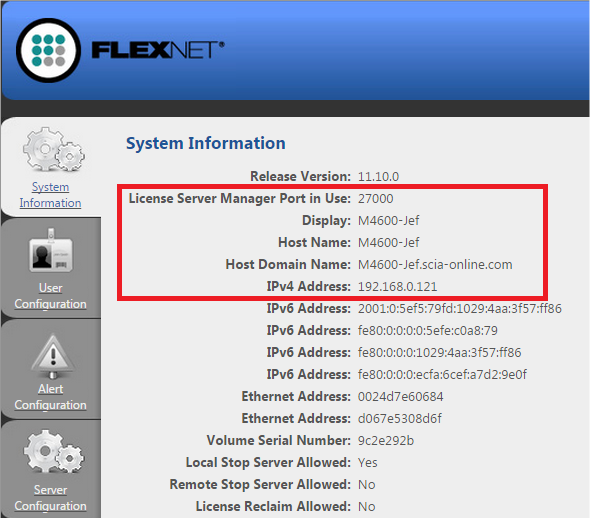
Remember the port and host name!
(In this case: port = 27000, host = M4600-Jef)
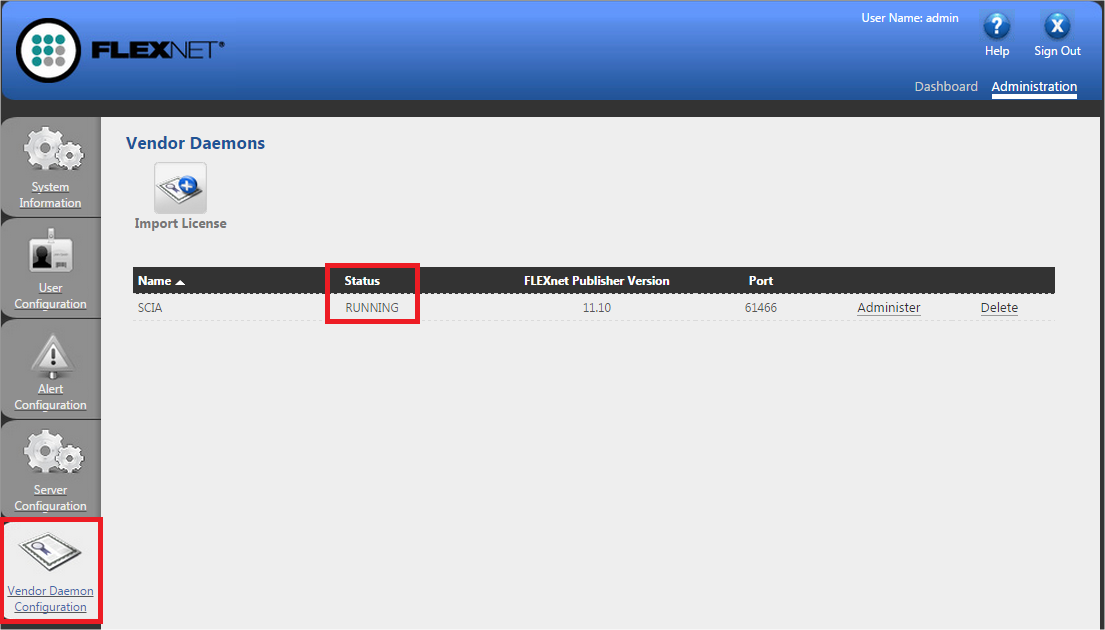
- Go to Vendor Daemon Configuration and check if Status = RUNNING.
Questions/problems?
à Go to the chapter about "Step 3. FLEXNET License Administrator"
- What to do if I can’t see the FLEXNET page?
- How can I change the port number?
- What to do if my status is not RUNNING?
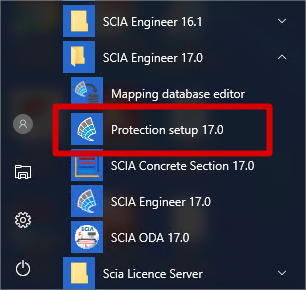
Step 4 (client): The protection setupIn the next step, we will open the protection setup and find the licenses. If you have opened the protection setup, you must choose the correct type of license. |
Try-out/test license
- Set the type to Try-out and click .
- You can check the licenses by clicking .
- If the box is empty, then set the type to Floating and path = @localhost.
Student license
- Set the type to Student and click .
- You can check the licenses by clicking .
- If the box is empty, then set the type to Floating and path = @localhost.
Official server license
- Set the type to Floating and fill in the path.
- The path is composed like this:port @ server
- The port number and host name are shown in the system information in step 3.
- The server name can be either the host name, or the IPv4 Address
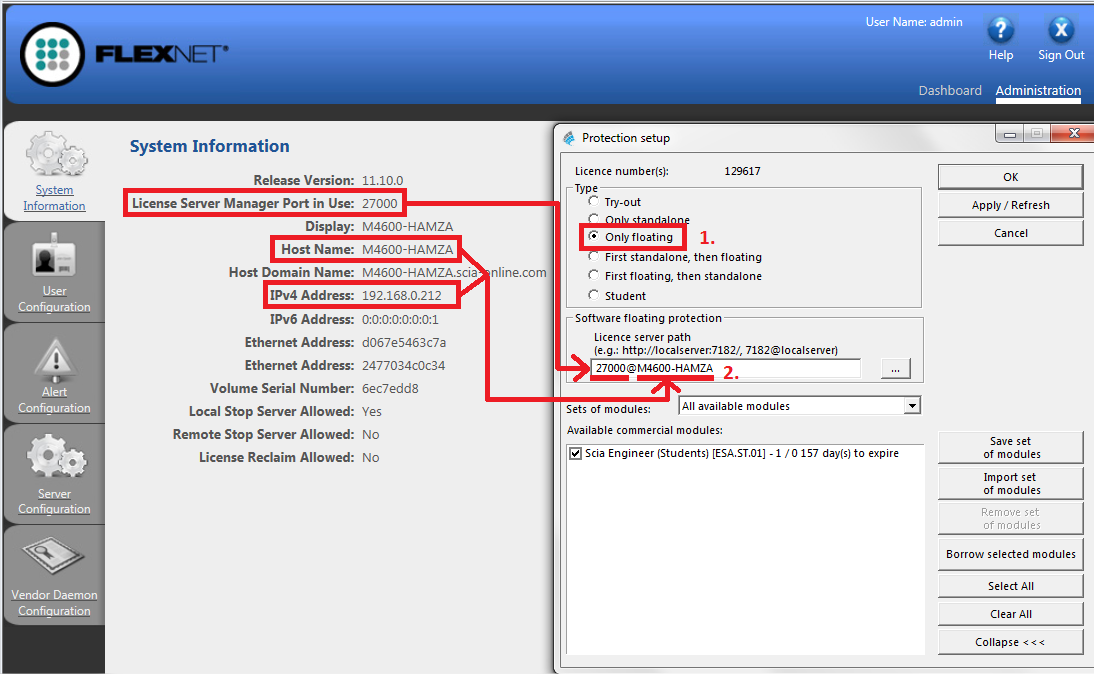
Click on and you should see licenses below.
Questions/problems?
à Go to the chapter about "Step 4. Protection Setup"
- If I hit , the box stays empty…
- How can I see who is using which license?
Now you’re done!
…. Unless something went wrong.
In that case, go to the correct chapter indicated under Questions/problems in the step that went wrong…