|
||
|
|
||
Open the General cross-section editor.
Use the tree menu located on the left hand side to start function Polygon.
If required, adjust polygon parameters in the dialogue that opens on the screen.
Close the setting dialogue.
Define the starting point of the section’s outline:
either by means of mouse which "sticks" to selected SNAP points,
or by typing the vertex co-ordinates on the command line.
Use the same approach to define additional vertices of the polygon.
When finished, close the function:
Note 1: See also chapter Plane polygon toolbar.
Note 2: When you start inputting individual vertices, the program draws the outline of the section. If possible, the program also closes the polygon and gives the idea of what the cross-section would look like if you input the vertex and then immediately close the function. If however, it is not possible to close the polygon (without intersecting one or more segments), the polygon is let open and only the defined part of the polygon is drawn.
The two pictures below demonstrate what has been said in the note above. Please note, that the vertex at the cursor (small square) has not been input yet.
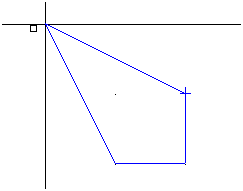
The program suggests the "closed" shape (Fig. above).
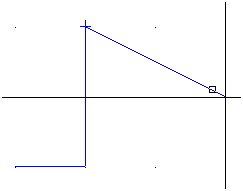
There is no possibility to close the polygon at the moment (Fig. above).
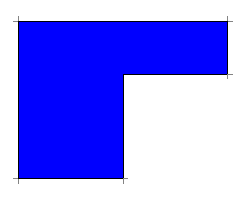
Example of a polygonal section